Archive for the ‘TEChNoLoGY’ Category

Macbook 2015

September 5th, 2017, posted in Apple
Share

Some reviews regarding the Macbook Pro 2015 

https://arstechnica.com/apple/2015/04/ultrabook-plus-the-2015-13-inch-retina-macbook-pro-reviewed/

http://www.t3.com/reviews/13-inch-macbook-pro-review

https://www.notebookcheck.net/Apple-MacBook-Pro-Retina-13-Early-2015-Notebook-Review.139621.0.html


Share

Network Unauthenticated 2 Icon Showing On Network Card Limited connectivity

August 21st, 2017, posted in Microsoft
Share

Network disconnected automatically and showing “Network Unauthenticated” on the “Local Area Connection”

Follow below steps to get the issue resolve :
Steps: 1
  • Go To The services.msc > Right Click on “Network Location Awareness” and Open Propertiesin General tab > change Startup Type as “Automatic (Delayed Start)” and Restart the Services
  • Follow same procedures for “Network List Services” ( Dependency on above service)

Steps: 2 

  • Go To the Command Promptand type below commands & hit Enter after each and every command

netsh
winsock
reset
Once the winsock reset you Must be Restart the System

Steps: 3

  •  Try to Enable/Disabled Network Card

Steps: 4

  • Right Click on Network icon and Open Network & sharing centerclick on Change Adapter settingsRight Click on Local Area Connection and open PropertiesClick on configure button > Select Power Management Tab > and Unchecked Allow the computer to turn off this device to save power (Same for all option available in below)
  • Restart the System/Computer

Steps: 5

  • Unjoin/Remove the workstation/machine from the Domain then delete All computer account from the Active Directory and rejoin or re-welcome in Domain

Steps: 6

  • E.g. – If  the Domain name is “CYBTEST.COM” and you find the name on the Network Card is changed as CYBTEST.COM 2” then edit and change as “CYBTEST.COM” in Registry as follows.
  • Open registry editor using regedit command > click on Edit > Findtype CYBTEST.COM  2
  • Find all changed entries and edit as normal CYBTEST.COM

Steps: 7 Change the NIC Dynamic port using batch file or below command line )

  • @echo off
    color 02
    netsh int ipv4 show dynamicport tcp
    pause
    echo “Dynamic port WILL SET as starting from 1025 to num=64510”
    pause
    netsh int ipv4 set dynamicport tcp start=1025 num=64510
    pause
    netsh int ipv4 show dynamicport tcp
    pause
    shutdown -r -t 05
Share

Find A String In Database

July 1st, 2017, posted in Oracle Queries
Share

I’ve tried using this statement below to find an appropriate column based on what I think it should be named but it returned no results :

SELECT * from dba_objects WHERE
object_name like '%DTN%'

A column isn't an object. If you mean that you expect the column name to be like '%DTN%', the query you want is:

SELECT owner, table_name, column_name FROM all_tab_columns WHERE column_name LIKE '%DTN%';
Share

Find SIM Registered With Your IDs in Telecom Service Providers

June 14th, 2017, posted in Kingdom, TEChNoLoGY
Share

Find SIM Registered With Your IDs in Telecom Service Providers 


Overview

‘My numbers’ service allows users to know details about all telephone numbers and data SIM registered with their IDs in Telecom Service Providers systems in order for the users to monitor their numbers and ensure no SIM registered with their names without permissions. CITC is looking forward to ensure user protection, maintain privacy, prevent misuse of user’s credentials by others without permissions.


Steps

Type the ID number of the user and the mobile number registered with that ID. In case the user does not have a subscription, the user can check that by typing the ID details.


Objection

In case any user found a number registered with his name without his permission or found a failure to execute an earlier request to cancel the service by the service provider, a complaint should be reported to the service provider immediately using the complaints services on CITC website choosing the appropriate service provider, complaint type, and providing the details of the SIM number being reported. If there is an objection regarding the validity of the information provided by ‘My numbers’ service and the complaint of the user has not been resolved by the service provider within 15 days, the user can escalate the complaint to CITC.

Share

How to transfer data from your old iPhone to your new iPhone

June 12th, 2017, posted in Apple
Share

How to transfer your data to your new iPhone using iTunes

Here’s the deal: If you make an encrypted backup of your old iPhone using iTunes, then restore it to your new iPhone, it’ll bring most — if not all — your password information along with it. That’ll save you a lot of time and effort getting set back up.

You do need a Lightning to USB cable (or 30-pin Dock to USB if you have an iPhone 4s or earlier), and you’ll still have to re-download apps — the App Store gives you slightly different versions for each device, optimized to run best on that specific hardware — but overall I still find it to be much, much faster.

  1. Make sure you’re running the most recent version of iTunes.
  2. Plug your old iPhone into your Mac or Windows PC.
  3. Launch iTunes.
  4. Click on the iPhone icon in the menu bar when it appears.
  5. Click on Back Up Now.
  6. Click on Encrypt Backup and add a password.
  7. Skip Backup Apps, if asked. (They’ll likely re-download anyway.)
  8. Unplug your old iPhone when done.
  9. Turn off your old iPhone.
  10. On iTunes on your Mac or Windows PC, select Restore from this backup.
  11. Choose your recent backup from the list.
  12. Enter your password if your backup was encrypted and it asks.
  13. Take your SIM card out of your old iPhone. (If you don’t have a new or separate SIM card for your new phone.)How to transfer data from your old iPhone to your new iPhone ,How to transfer data from your old iPhone, new iPhone,iPhone,How to transfer data,iTunes,most recent version of iTunes.Wait for the backup to complete before proceeding.
    1. Put your SIM card into your new iPhone. (If it didn’t come with a new or different SIM card.)
    2. Turn on your new iPhone.
    3. Plug your new iPhone into your Mac or Windows PC.
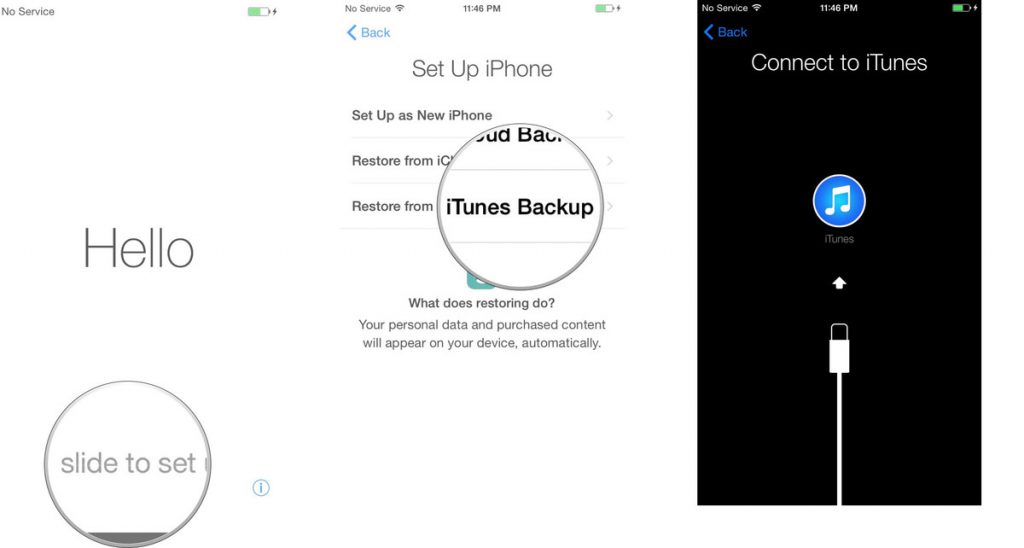
    4. Slide to set up on your iPhone.
    5. Follow the directions to choose your language and set up your Wi-Fi network.
    6. Select Restore from iTunes backup.
      How to transfer data from your old iPhone to your new iPhone ,How to transfer data from your old iPhone, new iPhone,iPhone,How to transfer data,iTunes,most recent version of iTunes.
    7. On iTunes on your Mac or Windows PC, select Restore from this backup.
    8. Choose your recent backup from the list.
    9. Enter your password if your backup was encrypted and it asks.How to transfer data from your old iPhone to your new iPhone ,How to transfer data from your old iPhone, new iPhone,iPhone,How to transfer data,iTunes,most recent version of iTunes.


      Keep your iPhone plugged into iTunes until the transfer is complete, and on Wi-Fi until all re-downloads are complete. Depending on how much data you have to re-download, including music and apps, it might take a while.Your iPhone might feel warm or even hot, and you might burn a lot of battery life for the first few hours or even a day or due to the radios working and the Spotlight search system indexing. Just let it finish.
Share