Archive for the ‘TEChNoLoGY’ Category

The 1927 Solvay Conference in Brussels

October 5th, 2015, posted in DAtEs iN a YeAR, Physics
Share

The 1927 Solvay Conference in Brussels was the fifth world physics conference
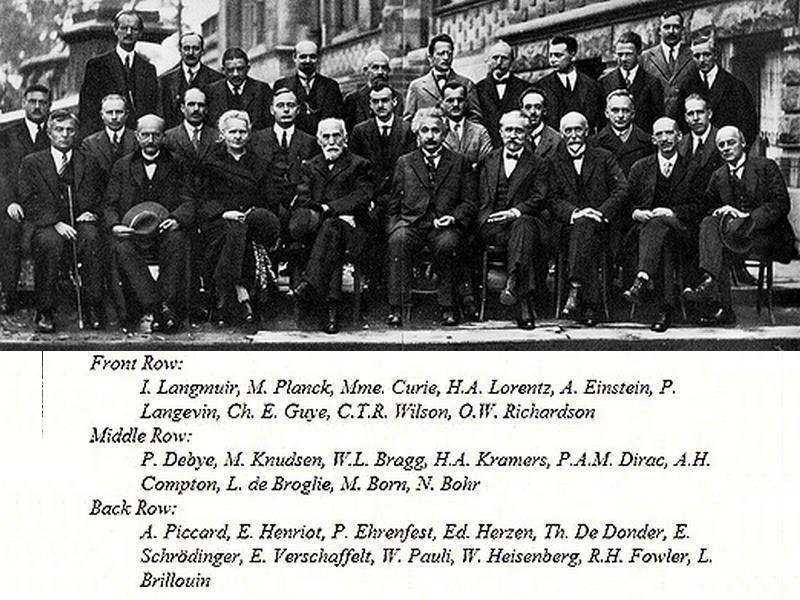
The 1927 Solvay Conference in Brussels,The 1927 Solvay Conference in Brussels was the fifth world physics conference,The 1927 Solvay Conference in Brussels ,the fifth world physics conference,world physics conference,physics conference,physics ,conference,Solvay Conference in Brussels ,Solvay Conference , Brussels,Solvay ,Conference in Brussels

The 1927 Solvay Conference in Brussels,The 1927 Solvay Conference in Brussels was the fifth world physics conference,The 1927 Solvay Conference in Brussels ,the fifth world physics conference,world physics conference,physics conference,physics ,conference,Solvay Conference in Brussels ,Solvay Conference , Brussels,Solvay ,Conference in Brussels

Share

ORA-01153: an incompatible media recovery is active On standby Database

September 24th, 2015, posted in Oracle Queries
Share
Problem

sys@standby> startup mount;Problem sys@standby> startup mount; ORACLE instance started. Total System Global Area  835104768 bytes Fixed Size                  2217952 bytes Variable Size             490735648 bytes Database Buffers          335544320 bytes Redo Buffers                6606848 bytes Database mounted. sys@standby> alter database recover managed standby database using current logfile disconnect; alter database recover managed standby database using current logfile disconnect * ERROR at line 1: ORA-01153: an incompatible media recovery is active Cause This indicates a currently running media recovery process. Action sys@standby> alter database recover managed standby database cancel; sys@standby> alter database recover managed standby database using current logfile disconnect; Note When shutting down physical standby database, firstly turn off media recovery process. Otherwise the next time when starting up redo apply again, you will encounter error ORA-01153.
ORACLE instance started.
Total System Global Area  835104768 bytes
Fixed Size                  2217952 bytes
Variable Size             490735648 bytes
Database Buffers          335544320 bytes
Redo Buffers                6606848 bytes
Database mounted.
sys@standby> alter database recover managed standby database using current logfile disconnect;
alter database recover managed standby database using current logfile disconnect
*
ERROR at line 1:
ORA-01153: an incompatible media recovery is active


Cause

This indicates a currently running media recovery process.


Action

sys@standby> alter database recover managed standby database cancel;
sys@standby> alter database recover managed standby database using current logfile disconnect;


Note

When shutting down physical standby database, firstly turn off media recovery process. Otherwise the next time when starting up redo apply again, you will encounter error ORA-01153.
Share

AC-00005: No write permissions for creating the Context file – /tmp/temp.xml

September 12th, 2015, posted in Oracle, Solaris
Share

Problem : 

While making Oracle Application Clone : 

Target System Root Service [enabled] :

Target System Web Entry Point Services [enabled] :

Target System Web Application Services [enabled] :

Target System Batch Processing Services [enabled] :

Target System Other Services [disabled] :

Do you want to preserve the Display [hooraps1:0.0] (y/n) ? : n

Target System Display [erp2:0.0] :
RC-50004: Error occurred in CloneContext:
AC-00005: No write permissions for creating the Context file – /tmp/temp.xml
Raised by oracle.apps.ad.context.AppsContext
Check Clone Context logfile /u07/appprod/apps/apps_st/comn/clone/bin/CloneContext_0908103640.log for details.

ERROR: Context creation not completed successfully.
For additional details review the file /tmp/adcfgclone_17325.err if present.

When you check log file you will get this : 

StackTrace:
java.lang.Exception: AC-00005: No write permissions for creating the Context file – /tmp/temp.xml
Raised by oracle.apps.ad.context.AppsContext
at oracle.apps.ad.context.AppsContext.getOaEnabledValues(AppsContext.java:733)
at oracle.apps.ad.context.CloneContext.setConfigHome(CloneContext.java:2306)
at oracle.apps.ad.context.CloneContext.doClone(CloneContext.java:606)
at oracle.apps.ad.context.CloneContext.main(CloneContext.java:5023)

RC-50004: Error occurred in CloneContext:
AC-00005: No write permissions for creating the Context file – /tmp/temp.xml
Raised by oracle.apps.ad.context.AppsContext
Context file creation not succesful


Solution :

Simply go to this path by root user /tmp/temp.xml . Give 777 rights to temp.xl .
And now login with application user and run perl adcfgclone.pl appsTier  !!

GoodLuck !! 🙂

Share

SQL Query / Code To Change English Date To Arabic

September 2nd, 2015, posted in Oracle Queries
Share

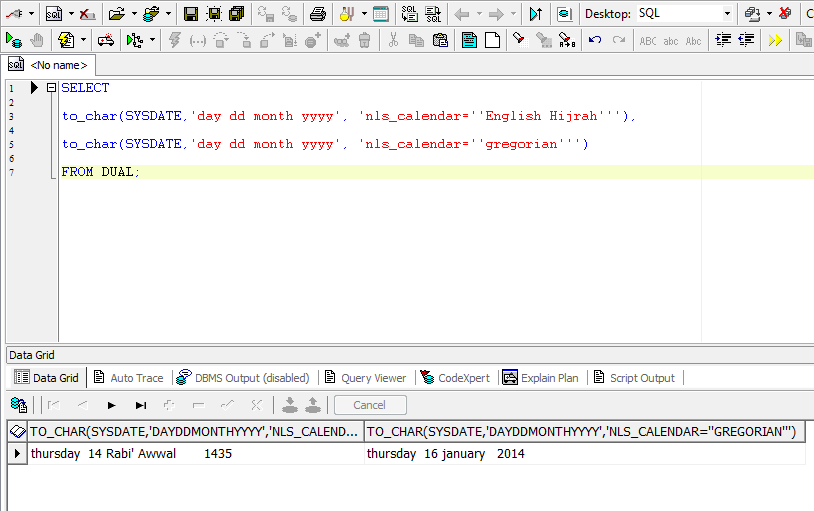
SELECT

to_char(SYSDATE,’day dd month yyyy’, ‘nls_calendar=”Arabic Hijrah”’),
to_char(SYSDATE,’day dd month yyyy’, ‘nls_calendar=”English Hijrah”’),
to_char(SYSDATE,’day dd month yyyy’, ‘nls_calendar=”gregorian”’)

FROM DUAL;

SQL Query / Code To Change English Date To Arabic Date,Query To Change English Date To Arabic Date,Code,Change English Date To Arabic Date,  ,Oracle,MySQL,SQL,change english to arabic,Arabic date,english date,date converstaion,conversation,

Share

How To Connect to a Remote Server in Linux, Solairs, Ubuntu

August 19th, 2015, posted in Solaris
Share

What Is SSH ??


One essential tool to master as a system administrator is SSH.
SSH, or Secure Shell, is a protocol used to securely log onto remote systems. It is the most common way to access remote Linux and Unix-like servers, such as VPS instances.
In this guide, we will discuss how to use SSH to connect to a remote system.


Basic Syntax


The tool on Linux for connecting to a remote system using SSH is called, unsurprisingly, ssh.
The most basic form of the command is:

ssh remote_host

The remote_host in this example is the IP address or domain name that you are trying to connect to.
This command assumes that your username on the remote system is the same as your username on your local system.
If your username is different on the remote system, you can specify it by using this syntax:

ssh remote_username@remote_host

Once you have connected to the server, you will probably be asked to verify your identity by providing a password.
Later, we will cover how to generate keys to use instead of passwords.
To exit back into your local session, simply type:

exit
Share