Archive for the ‘TEChNoLoGY’ Category

File/Folder named CON or LPT1 on WINDOWS

December 26th, 2012, posted in Microsoft
Share

File/Folder named CON or LPT1 on WINDOWS

G:>mkdir CON
The directory name is invalid.

G:>mkdir LPT1
The directory name is invalid.

G:>mkdir LPT2
The directory name is invalid.

G:>mkdir LPT9
The directory name is invalid.

Have you ever tried to make a folder or file named CON or LPT1 (in general LPTX X takes 1,2,3,…9)? If not try now and see that you cannot make a folder or file with those names. Have u already done? Read on …

Why is this so?

Inorder to find out why this doesn’t work we have to go back to the age of MS-DOS. Microsoft Disk Operating System (MS-DOS) is a command-line operating system that existed before the advent of GUI OS (Graphical User Interface). Everything from making ,renaming, deleting etc was done using commands. Some of the commands are

COPY     Copies one or more files to another location.
DEL      Deletes one or more files.
DIR      Displays a list of files and subdirectories in a directory.
FIND     Searches for a text string in a file or files.
.
.

Let us look more closely to the COPY command. The COPY command usage is as follows:

COPY [options] <source> [options] <destination>

In DOS everything is considered as files, even keyboard and printers. The filename for keyboard is given as “CON” and the printer names are given as “LPT1”, “LPT2” etc.. So inorder to copy something from keyboard (our input) the following command is used.

G:>COPY CON mydata.txt
These lines come in mydata.txt and inorder to stop input press Ctrl+Z
^Z

G:>COPY mydata.txt LPT1

So now you suppose that a folder or file named “con” could be created and you give a COPY CON command. What is DOS supposed to do? copy the CON file or use the keyboard console as input? Thus an ambiguity arises. So Microsoft has purposely disabled making of files or folders named CON / LPT1 / LPT2 etc. in order to remove this ambiguity.

Could you make a CON or LPT1 .. file on WINDOWS?

Found more invalid names? Let me know …..
Invalid Name List

+ CON
+ LPT1, LPT2, LPT3, LPT4 ... LPT9
+ PRN
+ NUL
+ COM1, COM2, COM3 .... COM9

Share

Make an Undeletable Folder

December 23rd, 2012, posted in Microsoft
Share

undelateable folder
1. Open cmd ( Type in Run option, the command ‘cmd’ or navigate to All Programs->Accessories-> Command Prompt)


2. In cmd change to the directory that you want ( you can use the commands ” cd…” to exit the curent folder and “E:” for example to change from your current drive to E drive.

3. Type md lpt1\ and press enter, the folder now will be in your E:

4. If you try to delete or rename it, it will appear error message

5. If you want to delete it just go to ‘cmd’, navigate to the directory and type rd lpt1\ and press Enter.

Share

Oracle : Oracle Error Code

December 4th, 2012, posted in Oracle
Share

This is the link which would really help you at the time of need. It will help you to find your oracle error code for you :

Link : http://psoug.org/oraerror.htm

Share

Evolution Of The Processor

November 29th, 2012, posted in TEChNoLoGY
Share

Evolution Of The Processor

Share

How to Capture Screenshots in Samsung Galaxy Y

November 7th, 2012, posted in Android
Share
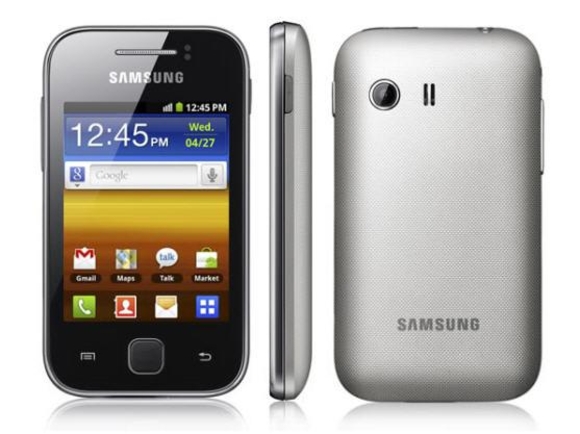
Samsung Galaxy Y
This post is in particular reply to some people who are asking me if I know how to take screenshots in Samsung Galaxy Y. Honestly I did not know the answer at first so I did some fiddling with the combinations of the available buttons in the Galaxy Y and luckily I was able to discover the right combination.
Do you want to take a screenshot in your Samsung Galaxy Y S5360? We all know that by default on an Android phone, there is no such screenshot application installed. Yes, there are some apps for taking screenshots like Screen Capture Shortcut which can be downloaded from Android market but what if you don’t want to install any app specifically for this purpose. Yes, there is a workaround.

It seems that Google have taken a good step in providing native support for capturing screenshots. But the main thing is that you must be knowing the correct key combination. There are different key combinations for different phones.

Capturing screenshot in Samsung Galaxy Y

Let’s not make the process complicated. Here is the process:

  • Open/navigate to the screen from where you want to take the screenshot
  • Press the Home button and hold it (don’t release the button)
  • Now press lock/power button and then immediately release it (If it doesn’t work, try again. Perfect “timing” is very important here)
  • As soon as this is done, you will hear a click sound, similar to the sound when you capture a photo from camera.
  • Also you will get this message “Screen captured. Saved as image file”.
  • Now you can navigate to the Gallery to view this screenshot. This screenshot will be saved in a new folder named as “Screenshot”.

The home key is that big button in the middle. The screenshots are saved in PNG format. You will need to try this key combination for some 2-3 times. It may happen that first time you may not be successful. But keep trying. It’s somewhat tricky.

Share