Archive for the ‘Solaris’ Category

Solaris 10 on VMware Installation Complete Notes

October 19th, 2013, posted in Solaris, TEChNoLoGY
Share

vmware

Here is a compete step-by-step notes that i recorded while walking through the installation process :

Before you can start, download the latest Solaris 10 x64 ISO file from sun.com and install Vmware server from vmware.com :

1. File –> New –> Virtual Machine
2. Click Next on the first scren.
3. Click Next (i.e. Keep Typica configuration)
4. Choose “4. Sun Soaris” for Guest Operating System.
5. (Optional and only if you have a 64 bit capable machine) choose “Solaris 10 64-bit” for Version.
6. Click Next
7. (Optional) Change Location of the virtual machine by click Browse
8. Click Next
9. Choose “Use network address translation (NAT)” and click Next.
10. (Optional) If want to save a little bit of unused space at the expense of slightly slower disk acces speed, uncheck “Allocate all disk space now”
11. Double click on CD-ROM from Devices panel
12. Choose “Use ISO image”
13. Click Browse to choose the DVD ISO file you downloaded earlier.
14. (Optional) Adjust the amount of RAM and number of CPUs you want to allocate to this image.
15. Click “Power on this virtua machine”
16. Enter on BRUB menu for default “Solaris”
17. Enter 1 for “Solaris Interactive (default)”
18. Enter 0 for English. Choose a different language if you wish.
19. Click Next
20. Choose Networked and click Next
21. Choose DHCP if non of the applications you use doesn’t require static IP. Click Next.
22. Click Next (i.e. not enabe IPv6)
23. Click Next (i.e. not enable Kerberos)
24. Click Next (i.e. not eanble Name Service)
25. Click Next (i.e. Use default method to define timezone)
26. Choose your geographical location to choose a timezone and click Next.
27. Click Next (i.e. to accept the date and time)
28. Enter a root password.
29. Click Confirm to accept Selection Summary
30. Click Next
31. (Optional) Choose No for “Reboot automatically after software instalation” Since the CD-ROM was “entered” by software configuration and “eject” is better done via VMWare’s configuration. In case you were not watching when the install completed, it is probably better to let it wait for you to manualy reboot and umount CDRom via VMWare’s configuration window. Click Next and click OK on the pop-up window.
32. Click Next to accept the default Media, which is CD/DVD
33. Check Accept and click Next
34. Choose Custom Install and click Next
35. Expand North America, check “English (United States) (en_US)” and “English United States, UTF-8)(en_US.UTF-8)” and click Next
36. Choose en_US.ISO8859-1 and click Next
37. Click Next (i.e. not install extra software)
38. Click Next (i.e. keep none for no additional software through Web Start)
39. Choose Entire Group Pus OEM and click Next
40. Click Next to accept the default deisk selection
41. Click Next to accept the default disk for partition customization
42. Click Next to accept allocation of all space to Solaris
43. Click Modify to edit partition information
44. Remove slice 7 entry
45. Increase the swap size to the double the amount of RAM you allocated for Solaris in VMWare.
46. Add the remaining disk space to / and click OK
47. Click Next to continue
48. Review the configuration. If everything looks correct, click Install Now. Now you may want to take a break or do something else and check back once in a whie to check on the installation progress.
49. After installation, you should see a Reboot Now Button. Click it.
50. View –> Current View –> Summary
51. Double click on CD-ROM
52. Choose “Use a physical drive:” and click OK
53. If you get an error, just click OK. You probably don’t have a CD/DVD media in your computer at this time.
54. View –> Current View –> Console
55. Press “Enter” key to not override the system’s default NFS version 4 domain name.
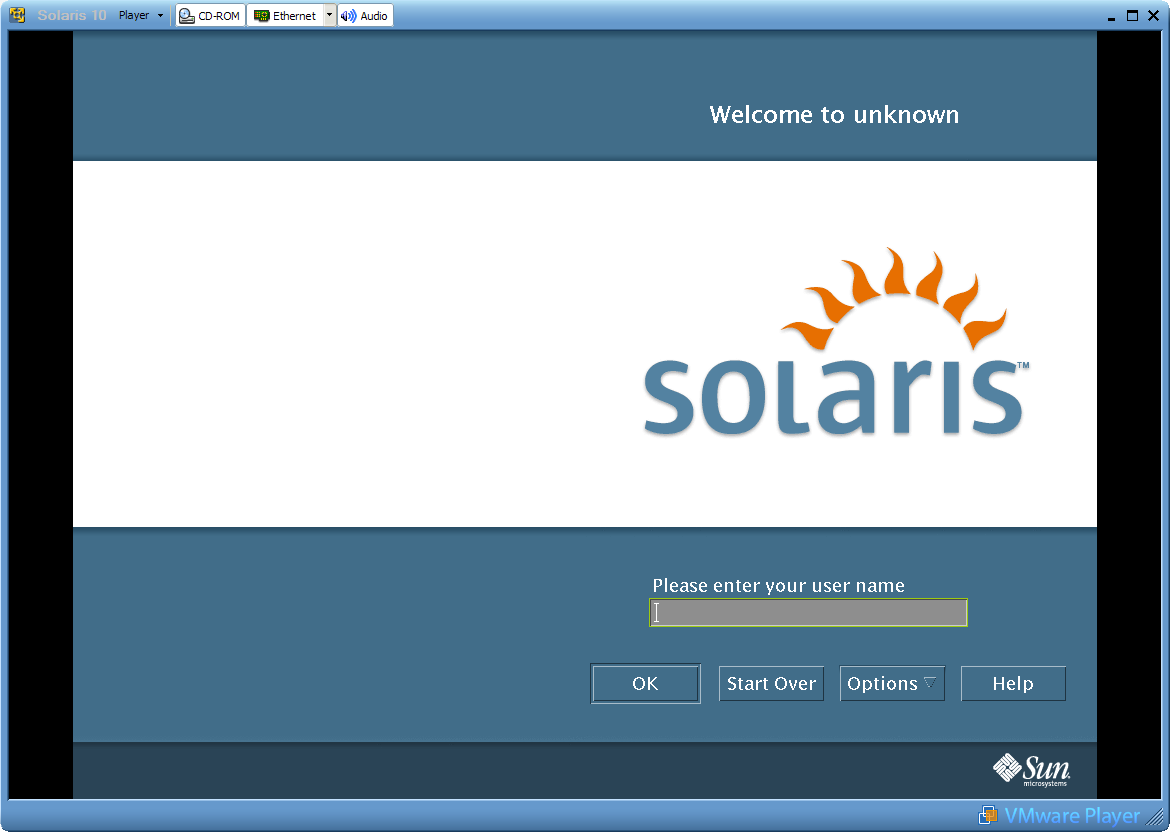
56. You should see the login screen once Soalaris completed boot process. Enter root and root password to start using Solaris. Make sure you use JDS 3 by clicking on Options –> Session –> Java Destop System, Release 3 from the boot menu.

APPENDIX A: Install VMWare Tools

1. VM –> Instal VMWare Tools
2. Click install
3. Launch –> Applications –> Utilities –> Terminal
4. cp /cdrom/vmwaretoos/vmware-solaris-tools.tar.gz /tmp/
5. cd /tmp
6. gunzip vmware-solaris-tools.tar.gz
7. tar xvf vmware-solaris-tools.tar
8. cd vmware-tools-distrib
9. ./vmware-install.pl
10. Enter to accept default directory at /usr/bin
11. Enter to accept default directory at /etc
12. Enter to accept default directory at /etc/init.d
13. Enter to accept default directory at /usr/sbin
14. Enter to accept default directory at /usr/lib/vmware-tools
15. Enter to accept creating the directory
16. Enter to accept default documentation directory at /usr/share/doc/vmware-tools
17. Enter to accept creating the directory
18. Enter to accept executing /usr/bin/vmware-cofnig-tools.pl
19. Enter to accept creation of /etc/X11/xorg.conf file
20. Enter the appropriate number that represent the correct resolution for your monitor.
21. Restart X session or reboot

vmware solaris10_4

Another link for this by images is this : http://zakkiahmed.wordpress.com/2009/08/12/installing-solaris-10-on-vmware/

Share

Basic LINUX Commands That a DBA Should Know

May 26th, 2012, posted in Oracle, Solaris
Share

Basic LINUX commands that a DBA should know

groupadd
This is the command used to create new group. At OS level group is used to give and take  pivillages.
Syntax : groupadd <group name>
Ex : [root@rac5 ~]# groupadd group1
View : [root@rac5 ~]# cat /etc/group  -This command used to view which user belongs to which group.
Output: group1:x:607:

useradd
This is the command used to create a new user in a group.
Syntax : useradd -g <group name> <user name>
Ex : [root@rac5 ~]# useradd -g group1 user1

passwd
This is the command used to give password for create use or to update the password.
Syntax : passwd <user name>
Ex: [root@rac5 ~]# passwd user1
Output :
[root@rac5 ~]# Changing password for user soufir.
New UNIX password:
BAD PASSWORD: it is based on a dictionary word
Retype new UNIX password:
passwd: all authentication tokens updated successfully.

date
a. This is the command used to view the current system date.
Syntax : date
Output : Wed Oct 27 21:55:36 IST 2010
b. In order to update the date we can give :
Syntax : [root@rac5 ~]# date -s “2 OCT 2010 14:00:00″  OR
[root@rac5 ~]# date –set=”27 OCT 2010 21:56:00″
Output : Sat Oct  2 14:00:00 IST 2010

cal
This command shows the calender of current year or any.
Ex : [root@rac5 ~]#  Cal
Output : [root@rac5 ~]#    October 2010
Su Mo Tu We Th Fr Sa
1  2
3  4  5  6  7  8  9
10 11 12 13 14 15 16
17 18 19 20 21 22 23
24 25 26 27 28 29 30
31

pwd
This command is to view the present working directory.
Ex : [root@rac5 ~]# pwd
Output : [root@rac5 ~]# /root.

cd
a.This is the command used to change a directory
Ex : [oracle@rac5 ~]$ ls
authorized_keys  file   file2  oraInventory  stand.ora
authorized-keys  file1  file3  soufir
[oracle@rac5 ~]$ cd soufir
[oracle@rac5 soufir]$
b.This is used to go back to parent directory
Ex : cd ..
mkdir
This command is used for make a new directory.
Ex : mkdir dir1
rmdir
This commad is used for remove a directory.
Ex : rmdir dir1
rm -rf
This command is used to forcefully remove a direcory.
Ex : rm -fr dir1

man
This command is used to show the online manual pages of related commands
Ex : man ls

ls
This command is used to list all contents of directories
Ex : ls

ls -lt
This command is used to list lot of information about contents of directories
Ex : ls -lt
The permissions are the first 10 characters of the line (-rwxrwx—) and can be broken down as follows.
rwx
r–
r–
1
root
root
765
Apr 23
file.txt
File type
Owner
Group
All
Links
Owner
Group
Size
Mod date
Filename

touch

This command is used create an empty file
Ex : touch file1

cat
This command is used to create and view files of directories
Ex : cat file1
cat file1 > newfile   // owerwrite newfile with file1
cat file1 >> newfile  // append newfile the contents with file1

cp
This command is used to copy a file from one to another
Ex : cp file1 filenew

mv
This command is used to rename the name of a file to other
Ex : mv file1 filenew

su
This command is used to switch one user to other. it doesnot change the current working directory. so you cant access the /usr/sbin  directories.
Ex : su soufir

su –
This command is used to switch one user with changing current working directory.
Ex : su – soufir

*********************************************************************************************************************
Note : Please not do make backups before using these queries and also confirm them yourself or by aother means as
 well.
*********************************************************************************************************************
Share

List Of Few Common Linux Commands

May 26th, 2012, posted in Solaris
Share

alias – Create an alias

awk – Find and Replace text, database sort/validate/index

break – Exit from a loop

builtin – Run a shell builtin

cal – Display a calendar

cse – Conditionally perform a command

cat – Display the contents of a file

cd – Change Directory

cfdisk – Partition table manipulator for Linux

chgrp – Change group ownership

chmod – Change access permissions

chown – Change file owner and group

chroot – Run a command with a different root directory

cksum – Print CRC checksum and byte counts clear Clear terminal screen

cmp – Compare two files

comm – Compare two sorted files line by line

command – Run a command – ignoring shell functions

continue – Resume the next iteration of a loop

cp – Copy one or more files to another location

cron – Daemon to execute scheduled commands

crontab – Schedule a command to run at a later time

csplit – Split a file into context-determined pieces

cut – Divide a file into several parts

date – Display or change the date & time

dc – Desk Calculator

dd – Data Dump – Convert and copy a file

declare – Declare variables and give them attributes

df – Display free disk space

diff – Display the differences between two files

diff3 – Show differences among three files

dir – Briefly list directory contents

dircolors – Colour setup for `ls’

dirname – Convert a full pathname to just a path

dirs – Display list of remembered directories

du – Estimate file space usage

echo – Display message on screen ed A line-oriented text editor (edlin)

egrep – Search file(s) for lines that match an extended expression eject Eject CD-ROM

enable – Enable and disable builtin shell commands

env – Display, set, or remove environment variables

eval – Evaluate several commands/arguments

exec – Execute a command exit Exit the shell

expand – Convert tabs to spaces

export – Set an environment variable

expr – Evaluate expressions

factor – Print prime factors

false – Do nothing, unsuccessfully

fdformat – Low-level format a floppy disk

fdisk – Partition table manipulator for Linux

fgrep – Search file(s) for lines that match a fixed string

find – Search for files that meet a desired criteria

fmt – Reformat paragraph text

fold – Wrap text to fit a specified width.

for – Expand words, and execute commands format Format disks or tapes free Display memory usage

fsck – Filesystem consistency check and repair.

function – Define Function Macros

gawk – Find and Replace text within file(s)

getopts – Parse positional parameters

grep – Search file(s) for lines that match a given pattern

groups – Print group names a user is in

gzip – Compress or decompress named file(s)

hash – Remember the full pathname of a name argument

head – Output the first part of file(s)

history – Command History

hostname – Print or set system name

id – Print user and group id’s

if – Conditionally perform a command

import – Capture an X server screen and save the image to file

info – Help info

install – Copy files and set attributes

join – Join lines on a common field

kill – Stop a process from running

less – Display output one screen at a time

let – Perform arithmetic on shell variables

ln – Make links between files

local – Create variables

locate – Find files

logname – Print current login name

logout – Exit a login shell

lpc – Line printer control program

lpr – Off line print lprint Print a file lprintd Abort a print job lprintq List the print queue

lprm – Remove jobs from the print queue

ls – List information about file(s)

m4 – Macro processor

man – Help manual

mkdir – Create new folder(s)

mkfifo – Make FIFOs (named pipes)

mknod – Make block or character special files

more – Display output one screen at a time

mount – Mount a file system

mtools – Manipulate MS-DOS files

mv – Move or rename files or directories

nice – Set the priority of a command or job

nl – Number lines and write files

nohup – Run a command immune to hangups

passwd – Modify a user password

paste – Merge lines of files pathchk Check file name portability

popd – Restore the previous value of the current directory

pr – Convert text files for printing printcap Printer capability database printenv Print environment variables

printf – Format and print data

ps – Process status

pushd – Save and then change the current directory

pwd – Print Working Directory

quota – Display disk usage and limits

quotacheck – Scan a file system for disk usage

quotactl – Set disk quotas

ram – ram disk device

rcp – Copy files between two machines.

read – read a line from standard input

readonly – Mark variables/functions as readonly remsync Synchronize remote files via email

return – Exit a shell function

rm – Remove files

rmdir – Remove folder(s)

rpm – Remote Package Manager

rsync – Remote file copy (Synchronize file trees) screen Terminal window manager

sdiff – Merge two files interactively

sed – Stream Editor

select – Accept keyboard input

seq – Print numeric sequences

set – Manipulate shell variables and functions

shift – Shift positional parameters

shopt – Shell Options

shutdown – Shutdown or restart linux

sleep – Delay for a specified time

sort – Sort text files

source – Run commands from a file `.’

split – Split a file into fixed-size pieces

su – Substitute user identity

sum – Print a checksum for a file

symlink – Make a new name for a file

sync – Synchronize data on disk with memory

tac – Concatenate and write files in reverse

tail – Output the last part of files

tar – Tape ARchiver

tee – Redirect output to multiple files

test – Evaluate a conditional expression

time – Measure Program Resource Use

times – User and system times

touch – Change file timestamps

top – List processes running on the system

traceroute – Trace Route to Host trap Run a command when a signal is set(bourne)

tr – Translate, squeeze, and/or delete characters

true – Do nothing, successfully

tsort – Topological sort

tty – Print filename of terminal on stdin

type – Describe a command

ulimit – Limit user resources

umask – Users file creation mask umount Unmount a device

unalias – Remove an alias

uname – Print system information

unexpand – Convert spaces to tabs

uniq – Uniquify files

units – Convert units from one scale to another

unset – Remove variable or function names

unshar – Unpack shell archive scripts

until – Execute commands (until error)

useradd – Create new user account

usermod – Modify user account

users – List users currently logged in

uuencode – Encode a binary file

uudecode – Decode a file created by uuencode v Verbosely list directory contents (`ls -l -b’) vdir Verbosely list directory contents (`ls -l -b’)

watch – Execute/display a program periodically

wc – Print byte, word, and line counts

whereis – Report all known instances of a command

which – Locate a program file in the user’s path.

while – Execute commands

who – Print all usernames currently logged in whoami Print the current user id and name (`id -un’)

xargs – Execute utility, passing constructed argument list(s)

yes – Print a string until interrupted

.period – Run commands from a file

### – Comment / Remark

Share