Archive for the ‘TEChNoLoGY’ Category

Cisco Linksys WRT160n v2 Wirelss Configuration

April 21st, 2014, posted in TEChNoLoGY
Share

cisco linksys wrt160n v2 wirelss configration,cisco linksys wrt160n v2, wirelss configration,cisco, linksys, wrt160n v2 ,wirelss ,configration,cisco router,linksys router,wrt160n, v2, configration for wirelss ,network,networking,Wireless-N Broadband Router,Wireless router,Broadband Router,cisco Router,linksys Router,RouterCisco-Linksys WRT160N Wireless-N Broadband Router

• Great for larger homes with many users
• Fast Wireless-N connectivity frees you to do more around your home

Technical Details :
Brand Cisco
Item Weight 635 g
Product Dimensions 27.2 x 24.4 x 6.6 cm
Item model number WRT160N
Processor Count 1
RAM Size 2000 MB
Computer Memory Type SDRAM
Wireless Type 2.4 GHz Radio Frequency, 802.11n

Some useful links to configure it :

http://www.wikihow.com/Configure-a-Linksys-WRT160N-Router
http://www.pcwintech.com/wireless-setup-linksys-wrt160n-v2-linksys-firmware
http://audipages.com/router/

Share

Settings for Zain Mobile Internet Setting – Saudi Arabia

April 17th, 2014, posted in Android, Kingdom
Share

Settings for Zain Mobile Internet Service - Saudi Arabia,Settings for Zain Mobile Internet Service,Saudi Arabia,Zain Mobile Internet Setting,Mobile Internet Service

For iPhone Manual setup :

- Select Settings.
- Select General.
- Select Network or Cellular
- Select Cellular Data Network.

- Under Cellular Data Option
  APN: zain
  Username:
  Password:  

- Under MMS Option
  APN:
  Username:
  Password:
  MMSC:
  MMS Proxy:
  MMS Max Message Size:
  MMS UA Prof URL:  

- Click Network Tab up the top to save

Note: If you do not have the Cellular Data Option then please use the
Automated Setup by going to http://www.unlockit.co.nz from your iPhone.
---------------------------

For Android Manual Setup :

- Press Main
- Select Settings
- Select Wireless and Networks
- Select Mobile Networks
- Select Access point Names
- Delete all APN's in this section.
- Press Menu
- Press New APN
- Enter the follow settings one for General Data . The other for MMS

Name: SA - Zain Web
APN: zain
Proxy:
Port:
Username:
Password:
Server:
MMSC:
MMS Proxy:
MMS Port:
MMS Protocol: WAP 2.0
MCC: 420
MNC: 04
Authentication Type: PAP
APN Type: default, supl

PXT Messaging MMS:
Name: SA - Zain MMS
APN:
Proxy:
Port:
Username:
Password:
Server:
MMSC:
MMS Proxy:
MMS Port:
MMS Protocol: WAP 2.0
MCC: 420
MNC: 04
Authentication Type: PAP
APN Type: mms
Share

How to Back Up or Copy Your Outlook Mail, Contacts and Other Data

April 7th, 2014, posted in Microsoft
Share


How to Back Up or Copy Your Outlook Mail, Contacts and Other Data

This is a very good link with all the steps to make Back Up or Copy Your Outlook Mail, Contacts and Other Data :

http://www.makeuseof.com/tag/5-easy-ways-to-back-up-your-microsoft-outlook-data/


Share

Useful Keyboard Shortcuts

April 6th, 2014, posted in Microsoft
Share

Useful Keyboard Shortcuts,General keyboard shortcuts,keyboard shortcuts,keyboard,shortcuts,Microsoft Internet Explorer navigation,Microsoft Internet Explorer, navigation,Remote desktop connection navigation,Remote desktop connection, navigation,desktop,MMC console window keyboard shortcuts,MMC console window, Microsoft Management Console, (MMC), main window keyboard shortcuts,Shortcut keys for Character Map,Microsoft,Windows,keyboard,shortcuts

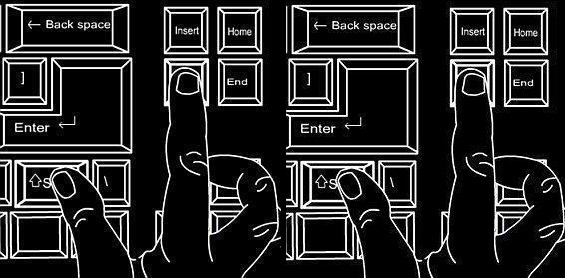
Useful Keyboard Shortcuts

General keyboard shortcuts

* CTRL+C (Copy)
* CTRL+X (Cut)
* CTRL+V (Paste)
* CTRL+Z (Undo)
* DELETE (Delete)
* SHIFT+DELETE (Delete the selected item permanently without placing the item in the Recycle Bin)
* CTRL while dragging an item (Copy the selected item)
* CTRL+SHIFT while dragging an item (Create a shortcut to the selected item)
* F2 key (Rename the selected item)
* CTRL+RIGHT ARROW (Move the insertion point to the beginning of the next word)
* CTRL+LEFT ARROW (Move the insertion point to the beginning of the previous word)
* CTRL+DOWN ARROW (Move the insertion point to the beginning of the next paragraph)
* CTRL+UP ARROW (Move the insertion point to the beginning of the previous paragraph)
* CTRL+SHIFT with any of the arrow keys (Highlight a block of text)
* SHIFT with any of the arrow keys (Select more than one item in a window or on the desktop, or select text in a document)
* CTRL+A (Select all)
* F3 key (Search for a file or a folder)
* ALT+ENTER (View the properties for the selected item)
* ALT+F4 (Close the active item, or quit the active program)
* ALT+ENTER (Display the properties of the selected object)
* ALT+SPACEBAR (Open the shortcut menu for the active window)
* CTRL+F4 (Close the active document in programs that enable you to have multiple documents open simultaneously)
* ALT+TAB (Switch between the open items)
* ALT+ESC (Cycle through items in the order that they had been opened)
* F6 key (Cycle through the screen elements in a window or on the desktop)
* F4 key (Display the Address bar list in My Computer or Windows Explorer)
* SHIFT+F10 (Display the shortcut menu for the selected item)
* ALT+SPACEBAR (Display the System menu for the active window)
* CTRL+ESC (Display the Start menu)
* ALT+Underlined letter in a menu name (Display the corresponding menu)
* Underlined letter in a command name on an open menu (Perform the corresponding command)
* F10 key (Activate the menu bar in the active program)
* RIGHT ARROW (Open the next menu to the right, or open a submenu)
* LEFT ARROW (Open the next menu to the left, or close a submenu)
* F5 key (Update the active window)
* BACKSPACE (View the folder one level up in My Computer or Windows Explorer)
* ESC (Cancel the current task)
* SHIFT when you insert a CD-ROM into the CD-ROM drive (Prevent the CD-ROM from automatically playing)
* CTRL+SHIFT+ESC (Open Task Manager)

Dialog box keyboard shortcuts

If you press SHIFT+F8 in extended selection list boxes, you enable extended selection mode. In this mode, you can use an arrow key to move a cursor without changing the selection. You can press CTRL+SPACEBAR or SHIFT+SPACEBAR to adjust the selection. To cancel extended selection mode, press SHIFT+F8 again. Extended selection mode cancels itself when you move the focus to another control.
* CTRL+TAB (Move forward through the tabs)
* CTRL+SHIFT+TAB (Move backward through the tabs)
* TAB (Move forward through the options)
* SHIFT+TAB (Move backward through the options)
* ALT+Underlined letter (Perform the corresponding command or select the corresponding option)
* ENTER (Perform the command for the active option or button)
* SPACEBAR (Select or clear the check box if the active option is a check box)
* Arrow keys (Select a button if the active option is a group of option buttons)
* F1 key (Display Help)
* F4 key (Display the items in the active list)
* BACKSPACE (Open a folder one level up if a folder is selected in the Save As or Open dialog box)

Microsoft natural keyboard shortcuts

* Windows Logo (Display or hide the Start menu)
* Windows Logo+BREAK (Display the System Properties dialog box)
* Windows Logo+D (Display the desktop)
* Windows Logo+M (Minimize all of the windows)
* Windows Logo+SHIFT+M (Restore the minimized windows)
* Windows Logo+E (Open My Computer)
* Windows Logo+F (Search for a file or a folder)
* CTRL+Windows Logo+F (Search for computers)
* Windows Logo+F1 (Display Windows Help)
* Windows Logo+ L (Lock the keyboard)
* Windows Logo+R (Open the Run dialog box)
* Windows Logo+U (Open Utility Manager)

Accessibility keyboard shortcuts

* Right SHIFT for eight seconds (Switch FilterKeys either on or off)
* Left ALT+left SHIFT+PRINT SCREEN (Switch High Contrast either on or off)
* Left ALT+left SHIFT+NUM LOCK (Switch the MouseKeys either on or off)
* SHIFT five times (Switch the StickyKeys either on or off)
* NUM LOCK for five seconds (Switch the ToggleKeys either on or off)
* Windows Logo +U (Open Utility Manager)
Windows Explorer keyboard shortcuts
* END (Display the bottom of the active window)
* HOME (Display the top of the active window)
* NUM LOCK+Asterisk sign (*) (Display all of the subfolders that are under the selected folder)
* NUM LOCK+Plus sign (+) (Display the contents of the selected folder)
* NUM LOCK+Minus sign (-) (Collapse the selected folder)
* LEFT ARROW (Collapse the current selection if it is expanded, or select the parent folder)
* RIGHT ARROW (Display the current selection if it is collapsed, or select the first subfolder)

Shortcut keys for Character Map

After you double-click a character on the grid of characters, you can move through the grid by using the keyboard shortcuts:
* RIGHT ARROW (Move to the right or to the beginning of the next line)
* LEFT ARROW (Move to the left or to the end of the previous line)
* UP ARROW (Move up one row)
* DOWN ARROW (Move down one row)
* PAGE UP (Move up one screen at a time)
* PAGE DOWN (Move down one screen at a time)
* HOME (Move to the beginning of the line)
* END (Move to the end of the line)
* CTRL+HOME (Move to the first character)
* CTRL+END (Move to the last character)
* SPACEBAR (Switch between Enlarged and Normal mode when a character is selected)

Microsoft Management Console (MMC) main window keyboard shortcuts

* CTRL+O (Open a saved console)
* CTRL+N (Open a new console)
* CTRL+S (Save the open console)
* CTRL+M (Add or remove a console item)
* CTRL+W (Open a new window)
* F5 key (Update the content of all console windows)
* ALT+SPACEBAR (Display the MMC window menu)
* ALT+F4 (Close the console)
* ALT+A (Display the Action menu)
* ALT+V (Display the View menu)
* ALT+F (Display the File menu)
* ALT+O (Display the Favorites menu)

MMC console window keyboard shortcuts

* CTRL+P (Print the current page or active pane)
* ALT+Minus sign (-) (Display the window menu for the active console window)
* SHIFT+F10 (Display the Action shortcut menu for the selected item)
* F1 key (Open the Help topic, if any, for the selected item)
* F5 key (Update the content of all console windows)
* CTRL+F10 (Maximize the active console window)
* CTRL+F5 (Restore the active console window)
* ALT+ENTER (Display the Properties dialog box, if any, for the selected item)
* F2 key (Rename the selected item)
* CTRL+F4 (Close the active console window. When a console has only one console window, this shortcut closes the console)
Useful Keyboard Shortcuts,General keyboard shortcuts,keyboard shortcuts,keyboard,shortcuts,Microsoft Internet Explorer navigation,Microsoft Internet Explorer, navigation,Remote desktop connection navigation,Remote desktop connection, navigation,desktop,MMC console window keyboard shortcuts,MMC console window, Microsoft Management Console, (MMC), main window keyboard shortcuts,Shortcut keys for Character Map,Microsoft,Windows,keyboard,shortcuts

Remote desktop connection navigation

* CTRL+ALT+END (Open the Microsoft Windows NT Security dialog box)
* ALT+PAGE UP (Switch between programs from left to right)
* ALT+PAGE DOWN (Switch between programs from right to left)
* ALT+INSERT (Cycle through the programs in most recently used order)
* ALT+HOME (Display the Start menu)
* CTRL+ALT+BREAK (Switch the client computer between a window and a full screen)
* ALT+DELETE (Display the Windows menu)
* CTRL+ALT+Minus sign (-) (Place a snapshot of the entire client window area on the Terminal server clipboard and provide the same functionality as pressing ALT+PRINT SCREEN on a local computer.)
* CTRL+ALT+Plus sign (+) (Place a snapshot of the active window in the client on the Terminal server clipboard and provide the same functionality as pressing PRINT SCREEN on a local computer.)
Microsoft Internet Explorer navigation
* CTRL+B (Open the Organize Favorites dialog box)
* CTRL+E (Open the Search bar)
* CTRL+F (Start the Find utility)
* CTRL+H (Open the History bar)
* CTRL+I (Open the Favorites bar)
* CTRL+L (Open the Open dialog box)
* CTRL+N (Start another instance of the browser with the same Web address)
* CTRL+O (Open the Open dialog box, the same as CTRL+L)
* CTRL+P (Open the Print dialog box)
* CTRL+R (Update the current Web page)
* CTRL+W (Close the current window)
Share

LG Nexus 5: Main Issues And Quick Fixes

March 24th, 2014, posted in Android
Share

LG Nexus 5: Main Issues And Quick Fixes ,LG Nexus 5, Main Issues And Quick Fixes ,Main Issues , Quick Fixes,LG ,Nexus 5,Google Nexus 5,google LG Nexus 5,Wi-Fi Drop, Battery Drain, Poor Camera And Overheating,Singal issues,3g,Poor Camera , Overheating,Android ,LG Nexus 5 Review,About LG Nexus 5,Review of LG Nexus 5,Kitkat

Nexus 5 Bug Causes Texts and Calls to Randomly Not Come Through

Why did we develop cell phones in the first place?  Simply put, we did it to ease communication.  No longer did you have to be tethered to a desk in order to speak with someone who may be hundreds or thousands of miles away.  As technology developed, we soon started relying on them for simple text communication, which is less intrusive in our daily lives than traditional calls.  We expect phones to be able to do these things well, and we have began to take them for granted.  Now it would seem that the LG Nexus 5 is having some issues with this job, and this is both annoying and inconvenient for the many Nexus 5 owners out there.

The bug itself is pretty straight-forward.  At what would appear to be random times, the Nexus 5 will just stop receiving any kind of incoming calls or texts.  There are absolutely no signals that show that anything is wrong.  All the service and data bars will still read as if everything was functional, but the messages just will not come through.  You might ask:  if that is the case, then how did anyone find out about this bug?  Well, Google Voice users can check from their computers to see if there are any voicemails for them, and in these circumstances the users were alerted to voicemails being there without ever receiving any notification on the phone.  Based on what knowledge is available, this is a problem that can affect all Nexus 5 handsets, regardless of carrier.  However, AT&T does seem to have less complaints around the internet.

LG Nexus 5: Main Issues And Quick Fixes ,LG Nexus 5, Main Issues And Quick Fixes ,Main Issues , Quick Fixes,LG ,Nexus 5,Google Nexus 5,google LG Nexus 5,Wi-Fi Drop, Battery Drain, Poor Camera And Overheating,Singal issues,3g,Poor Camera , Overheating,Android ,LG Nexus 5 Review,About LG Nexus 5,Review of LG Nexus 5,Kitkat,Android 4.4 KitKat Nexus 5,Android 4.4 KitKat, Nexus5,Android 4.4, KitKat Nexus 5,Unfortunately, no one has yet be able to determine a standard set of circumstances that need to be in effect for the bug to show itself.  The most commonly stated conditions are that LTE was enables, WiFi was enabled and connected, or that the Nexus 5 had been asleep for a few minutes.  In some cases, just one of each event occurred, and in others, two or three happened.  So far, a singular cause has not been identified, but some theories predict that there are bugs in the drivers of the phone, or that there is interference between the signals and the Wi-Fi radios in the handsets.

Now the most common ways that people have found to work around this bug are pretty common sense-based looking at the problems.  If you are suffering from this issue, one solution could be to disable your LTE by going to Settings > (Wireless & Networks) More > Mobile Networks > Preferred network type > 3G.  This can be a real drag if you are paying for unlimited  (or just a high-capacity) of high-speed data, but hopefully it will be fixed soon.  Another reported solution is to set the phone to turn off W-Fi when in sleep mode, which you do through Settings > Wi-Fi > (menu) > Advanced > Keep Wi-Fi on during sleep > Never.  This will cause your phone to take a few seconds to reconnect to your access point after turning it back on, but it might be worth it if you get your connectivity notifications back.  There is word that we may be seeing an OTA fix rolled out from Google and LG, but there is no announced roll out date or anything of the like.

For now, we can only hope that these solutions may help anyone who is facing this bug.  As a Nexus 5 owner, I hope I do not have to deal with it, and I hope no one else has to as well.  Calls and texts are the most primary uses of smartphones, so having that compromised compromises that value of the phone itself, effectively turning it into a tiny tablet.

LG Nexus 5: Main Issues And Quick Fixes ,LG Nexus 5, Main Issues And Quick Fixes ,Main Issues , Quick Fixes,LG ,Nexus 5,Google Nexus 5,google LG Nexus 5,Wi-Fi Drop, Battery Drain, Poor Camera And Overheating,Singal issues,3g,Poor Camera , Overheating,Android ,LG Nexus 5 Review,About LG Nexus 5,Review of LG Nexus 5,Kitkat,Android 4.4 KitKat Nexus 5,Android 4.4 KitKat, Nexus5,Android 4.4, KitKat Nexus 5,

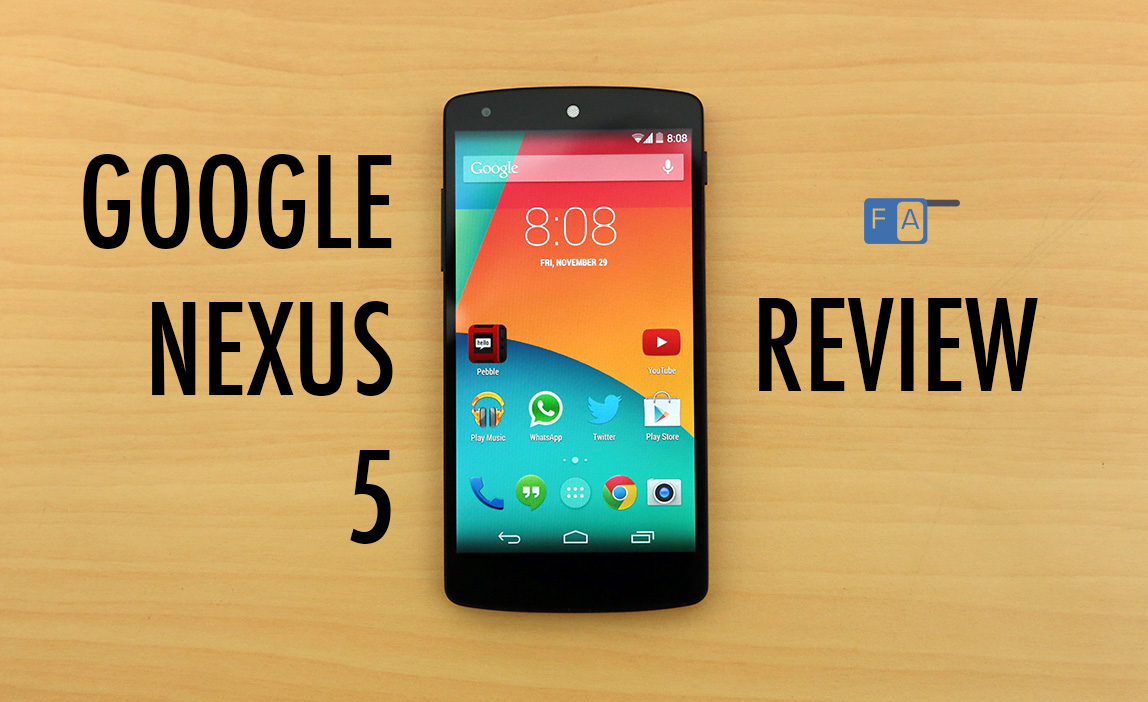
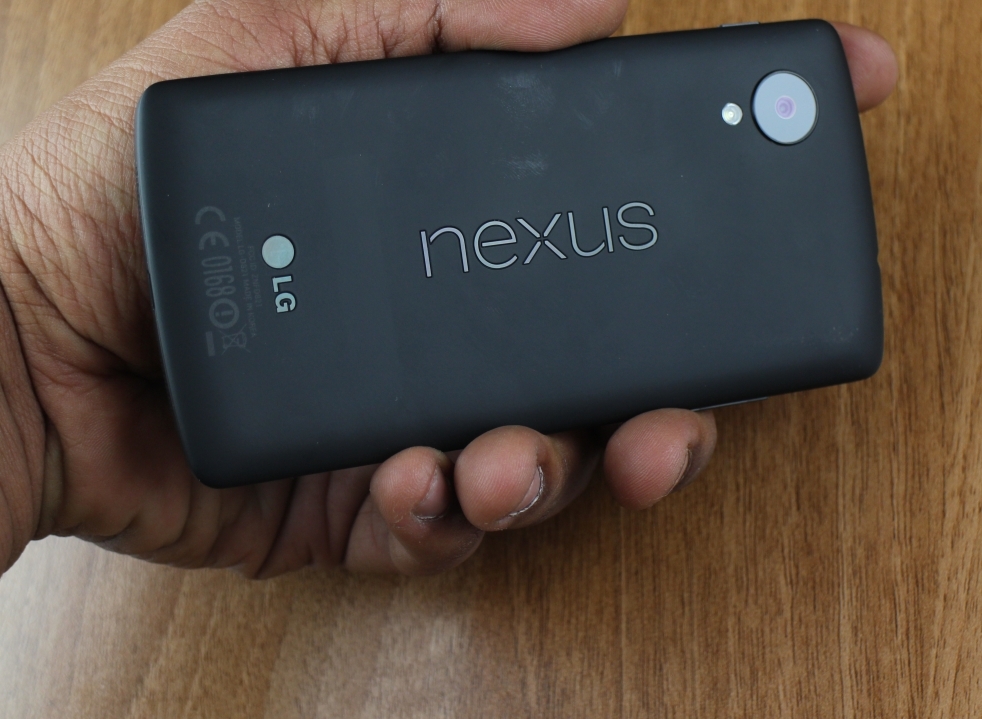
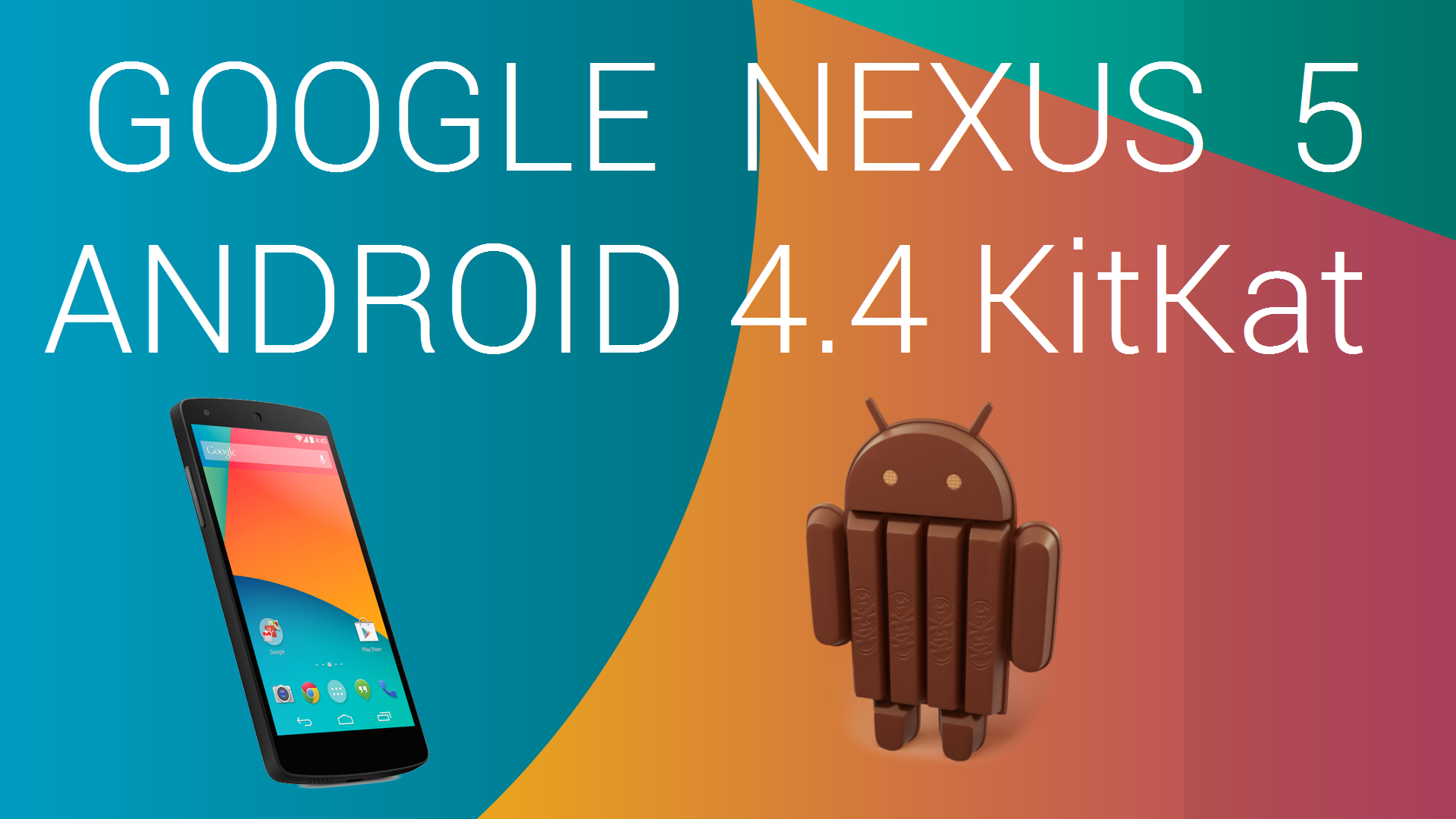
LG Nexus 5 has brought the newest features of Android 4.4 KitKat and an optical image stabilization camera module. However, the latest Nexus phone suffers several hardware and software problems as reported by users. Here are the most common issues and easy ways to fix them all.


Wi-Fi Disconnecting Or Dropping

Nexus 5 isn’t an exemption with this issue and users report they are unable to connect the Internet Wi-Fi or drops by moving to a short distance away from the router.

Possible solutions:

1.  Enable Airplane mode then turn off or toggle the Wi-Fi on and off to reset the connection.

2.  Reboot the Nexus 5 to refresh the entire system.

3.  Switch off the Wi-Fi router for 10 seconds then turn it back on.

4.  On the Nexus 5 Settings menu, select Wireless and networks > Wi-Fi > Forget the network the problem then reconnect and entire the right details.

5.  Update the firmware of the Wi-Fi router by checking the Web site from your Internet Service Provider’s manual.

6.  Change the band on your Nexus 5. Go to Settings > Wireless and networks > Wi-Fi > Menu key > Advance > Wi-Fi frequency band > Try 2.4 GHz or 5 GHz only instead of Auto. Uncheck the Avoid Poor Connections as well to improve Wi-Fi connectivity.

7.   Download the Wi-Fi Analyser app to check problems on the crowded channel.LG Nexus 5: Main Issues And Quick Fixes ,LG Nexus 5, Main Issues And Quick Fixes ,Main Issues , Quick Fixes,LG ,Nexus 5,Google Nexus 5,google LG Nexus 5,Wi-Fi Drop, Battery Drain, Poor Camera And Overheating,Singal issues,3g,Poor Camera , Overheating,Android ,LG Nexus 5 Review,About LG Nexus 5,Review of LG Nexus 5,Kitkat,Android 4.4 KitKat Nexus 5,Android 4.4 KitKat, Nexus5,Android 4.4, KitKat Nexus 5,


Battery Drain And Issues

Unfortunately, Nexus 5 only boasts 2300 mAh battery pack which drains fairly quick compared with other flagship smartphones.

Possible solutions:

1.  Conserve battery by managing wireless connections, brightness, screen time-out and wallpaper.

2.  Enable GPS battery saving mode. Go to Settings > Location mode > Battery saver instead of High Accuracy.

3.  If the charger makes loud buzzing sound, heats up or fails to recharge the phone, try an alternative charger instead. Use the USB cable to charge it on a computer and see the differences.

4.  Purchase an extended battery case or power bank to recharge the device anywhere.


Poor Camera Performance

Some complaints the poor performance of Nexus 5’s camera due to blurry captures, slow auto-focus and shutter lag.

Solution: Update the LG Nexus 5 to Android 4.4.1 or 4.4.2 KitKat which brings the ultimate camera fix provided by Google. Go to Settings > About phone > System updates.


Low Quality Audio

Many users suffer speaker problems such as reverb or muffling at lower volumes using the speaker.

Possible solutions:

1.  Make sure that nothing is blocking the speaker grills.

2.  Turn the Equaliser to improve audio output. Go to Google Play Music > Settings > Equaliser.

3.  Turn off the virtual surround sound when playing music via speaker.

4.  Update the Nexus 5 to Android 4.4.2 KitKat to solve majority of audio issues.


Overheating Problems

Nexus 5 may suffer overheating issues during heavy gaming due to high graphics rendering. Some users reported that Nexus 5 can reach up to 50 degrees Celsius during overheating status.

Possible solutions:

1.  Play heavy games in a well-ventilated place, with air-conditioning or fan to help it cool down.

2.  Don’t place the Nexus 5 on direct sunlight to prevent damaging internal parts.

3.  Never leave the smartphone inside the car to avoid accumulating heat and damaging the battery.

4.  Avoid playing high graphics gaming during recharging time to prevent overheating unless your area is very cool.

5.  If tasks aren’t intensive and yet the phone suffers overheating, visit the service center and ask for replacement for the problem may be a factory defect.

Are you facing any of these issues ??  Let us know down below !!

LG Nexus 5: Main Issues And Quick Fixes ,LG Nexus 5, Main Issues And Quick Fixes ,Main Issues , Quick Fixes,LG ,Nexus 5,Google Nexus 5,google LG Nexus 5,Wi-Fi Drop, Battery Drain, Poor Camera And Overheating,Singal issues,3g,Poor Camera , Overheating,Android ,LG Nexus 5 Review,About LG Nexus 5,Review of LG Nexus 5,Kitkat,Android 4.4 KitKat Nexus 5,Android 4.4 KitKat, Nexus5,Android 4.4, KitKat Nexus 5,

Share