

Sub Jaalien Gaien
November 11th, 2012, posted in Jaun Elia

How to Capture Screenshots in Samsung Galaxy Y
November 7th, 2012, posted in Android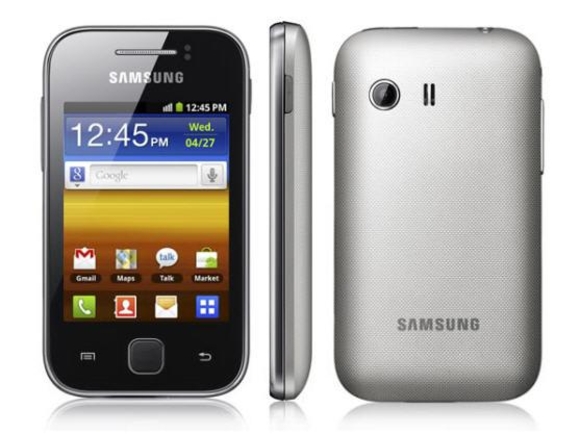
This post is in particular reply to some people who are asking me if I know how to take screenshots in Samsung Galaxy Y. Honestly I did not know the answer at first so I did some fiddling with the combinations of the available buttons in the Galaxy Y and luckily I was able to discover the right combination.
Do you want to take a screenshot in your Samsung Galaxy Y S5360? We all know that by default on an Android phone, there is no such screenshot application installed. Yes, there are some apps for taking screenshots like Screen Capture Shortcut which can be downloaded from Android market but what if you don’t want to install any app specifically for this purpose. Yes, there is a workaround.
It seems that Google have taken a good step in providing native support for capturing screenshots. But the main thing is that you must be knowing the correct key combination. There are different key combinations for different phones.
Capturing screenshot in Samsung Galaxy Y
Let’s not make the process complicated. Here is the process:
- Open/navigate to the screen from where you want to take the screenshot
- Press the Home button and hold it (don’t release the button)
- Now press lock/power button and then immediately release it (If it doesn’t work, try again. Perfect “timing†is very important here)
- As soon as this is done, you will hear a click sound, similar to the sound when you capture a photo from camera.
- Also you will get this message “Screen captured. Saved as image fileâ€.
- Now you can navigate to the Gallery to view this screenshot. This screenshot will be saved in a new folder named as “Screenshotâ€.
The home key is that big button in the middle. The screenshots are saved in PNG format. You will need to try this key combination for some 2-3 times. It may happen that first time you may not be successful. But keep trying. It’s somewhat tricky.