
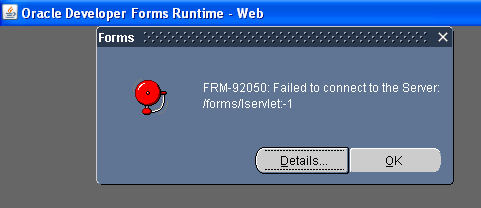
Solution :
MSIE 8 —>Tools > Internet Options >
Security Settings –>Custom Level >
Scroll down to entry “Enable XSS Filter” > Select Disable XSS Filter button.

Archive logging is essential for production databases where the loss of a transaction might be fatal. It is generally considered unnecessary in development and test environments.
To check if the ARCHIVELOG mode is enabled
ARCHIVE LOG LIST;

To see the current archiving mode, query the V$DATABASE view:
SELECT LOG_MODE FROM SYS.V$DATABASE;

LOG_MODE
------------
ARCHIVELOG
The SQL*Plus command ARCHIVE LOG LIST displays archiving information for the connected instance. For example:
SQL> ARCHIVE LOG LIST

Database log mode              Archive Mode
Automatic archival             Enabled
Archive destination            D:oracleoradataIDDB2archive
Oldest online log sequence     11160
Next log sequence to archive   11163
Current log sequence           11163
This display tells you all the necessary information regarding the archived redo log settings for the current instance:
ARCHIVELOG mode.
You can also run this UNIX/Linux/Solairs command to see if you are running in archivelog mode. If you are in ARCHIVELOG mode, you will see rows returned by this ps command:
$ ps -ef|grep -i _arc
——————————————————————-
Links :
http://www.dba-oracle.com/t_check_if_running_in_archivelog_mode.htm
http://docs.oracle.com/cd/B28359_01/server.111/b28310/archredo008.htm#ADMIN11355
http://psoug.org/reference/archivelog.html
https://support.ca.com/cadocs/0/CA%20ARCserve%20%20Backup%20r16-ENU/Bookshelf_Files/HTML/oraclewn/index.htm?toc.htm?ow_check_archivelog_mode.htm


The message “the color scheme has been changed to window 7 basic is related to the Windows Theme Aero .
For the problem “it is not open properly. it opened but in minimized state.”.
It is because the the Reports Builder Window is displayed Off the Screen
Reports Builder / Forms Builder Window Visible Only If Maximized (Doc ID 208196.1)
http://support.microsoft.com/kb/181691
Some Programs Are Displayed Off the Screen
Method 1 :
-Start the program.
-Right-click the program on the taskbar, and then click Maximize.
-Right-click a blank area of the taskbar, and then click Cascade Windows.
-Resize the program’s window as appropriate.
Method 2 :
-Start the program.
-Right-click the program on the taskbar, and then click Move.
-Move the mouse pointer to the middle of the screen.
-Use the ARROW keys on the keyboard to move the program window to a viewable area on the screen.
-Press ENTER.
-Resize the window if necessary.
Good Luck.. 🙂