


Archive for October, 2012
Jaun Elia – FARNOOD
October 18th, 2012, posted in Jaun Elia

Dard-e-Dil Likhon Kab Tak Jaon Un Ko Dikhlaon
October 15th, 2012, posted in Ghalib
How to Enable Telnet Client in Windows 7
October 14th, 2012, posted in MicrosoftTelnet Client is used to connect to remote machine by using the Telnet protocol. For example, I’m an old fashion IT guy, and I still like to configure Cisco Switches/Routers using telnet. If you started to use Windows 7, you will notice that telnet is not enabled by default !! Don’t panic, it is just a matter of few clicks and telnet will be enabled again.
Telnet Client allows a computer to connect to a remote Telnet server and run applications on that server. Once logged on, a user is given a command prompt that can be used as if it had been opened locally on the Telnet server’s console. Commands that you type at the Telnet client command prompt are sent to the Telnet Server and executed there, as though you were locally logged on to a command prompt session at the server. Output from the commands that you run are sent back to the Telnet client where they are displayed for you to view.
When you first try to run a telnet command, Windows will informs you that telnet is not recognized as a command
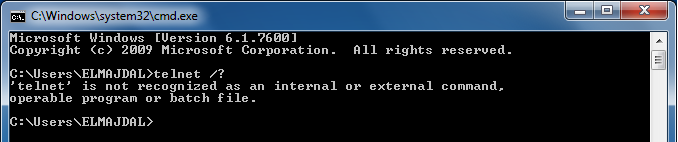
To enable Telnet Client on Windows 7, follow these steps :
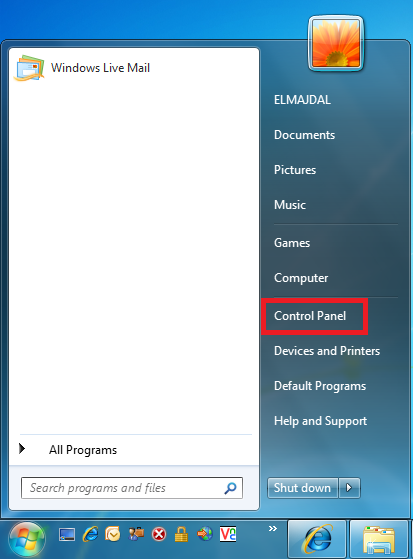
- Click on Start
 then right click on Control Panel
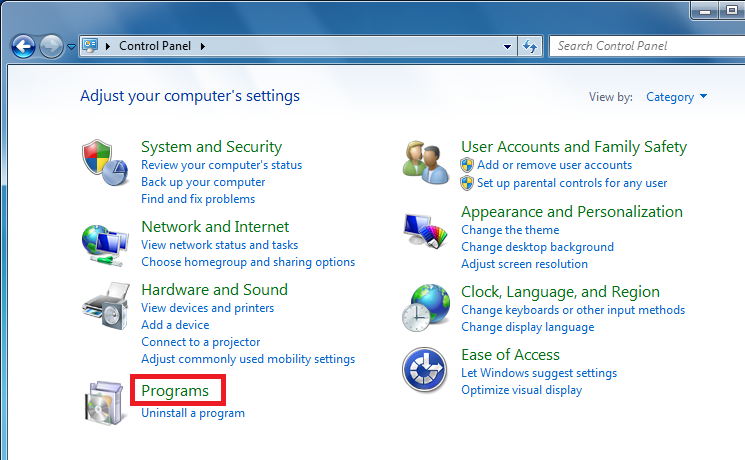
- From Control Panel, click on Programs :
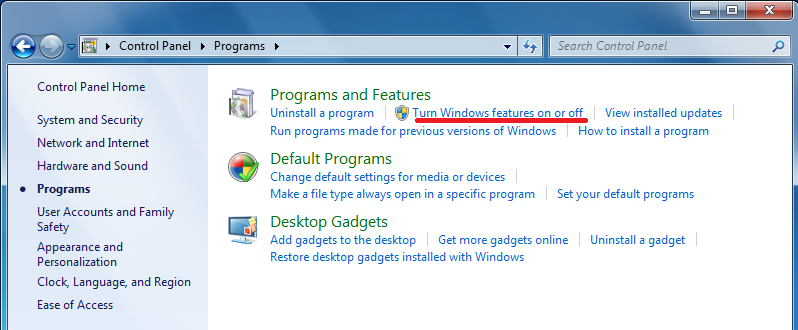
- Under Programs and Features, click on Turn Windows Features on or off
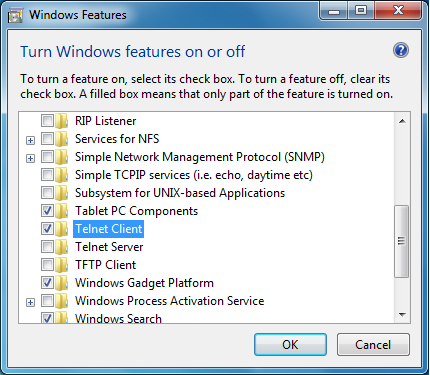
- From the Windows Features window, using the slider, scroll down till you reach Telnet Client, select the check-box beside it, then click on OK
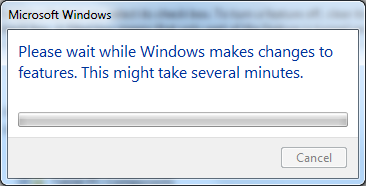
The selected feature will be installed.
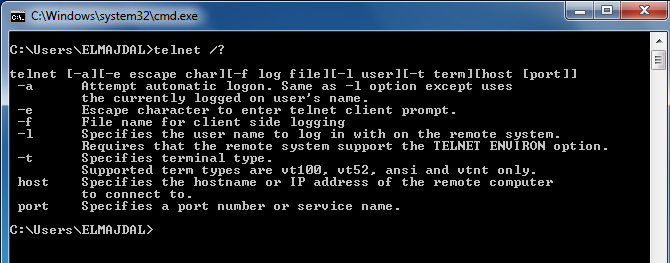
- To confirm that Telnet is installed, open command prompt and type telnet /?
Summary
By default, Telnet Client is not enabled in Windows 7. To enable it, you have to add the Telnet Client Windows Feature.
Another Method :
- Open a command prompt window.
- Click Start,type cmd in start search box, and then press Enter.
- Type the following command
pkgmgr /iu:”TelnetClient“
- If the User Account Control(UAC) dialog box appears, confirm that the action it displays is want you want, and then click continue.
- When the command prompt appears again, the installation is complete