Archive for the ‘Linux OS’ Category

Transferring The DBC File From The Application Server

June 6th, 2017, posted in Oracle, Solaris
Share

We will now transfer the database connection file (DBC) from the application server of our EBS environment. We will transfer this to our local directory so that we can create database connections for JDeveloper so that we can run our OAF pages locally during development.


How to do it :

To transfer the .dbc file, perform the following tasks:

  1. Open WinSCP or FileZilla etc and connect to the application server.
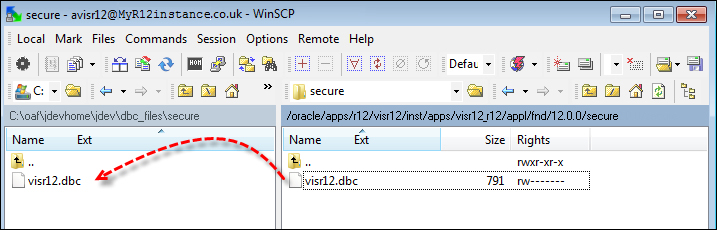
  2. FTP the .dbc file to your local PC from the $INST_TOP/appl/fnd/12.0.0.0/secure dor you can say its path is something like this /u99/appprod52/inst32/apps/PROD_DB/appl/fnd/12.0.0/secure  directory on the application server to the jdevhome\jdev\dbc_files\secure directory as shown in the following screenshot:


    Transferring The DBC File From The Application Server,Oracle DBA,DBA,Oracle Apps,Oracle DBC
Share

Unix for DBA

May 24th, 2017, posted in Solaris
Share

Below are some of the basic unix commands which will be useful for Oracle DBA.

How to kill all similar processes with single command (in this case opmn)

ps -ef | grep opmn |grep -v grep | awk ‘{print $2}’ |xargs -i kill -9 {}

Locating Files under a particular directory

find . -print |grep -i test.sql

Using AWK in UNIX

To remove a specific column of output from a UNIX command – for example to determine the UNIX process Ids for all Oracle processes on server (second column)

ps -ef |grep -i oracle |awk ‘{ print $2 }’

Changing the standard prompt for Oracle Users

Edit the .profile for the oracle user

PS1=”`hostname`*$ORACLE_SID:$PWD>”

Display top 10 CPU consumers using the ps command

/usr/ucb/ps auxgw | head -11

Show number of active Oracle dedicated connection users for a particular ORACLE_SID

ps -ef | grep $ORACLE_SID|grep -v grep|grep -v ora_|wc -l

Display the number of CPU’s in Solaris

psrinfo -v | grep “Status of processor”|wc -l

Display the number of CPU’s in AIX

lsdev -C | grep Process|wc -l

Display RAM Memory size on Solaris

prtconf |grep -i mem

Display RAM memory size on AIX

First determine name of memory device

lsdev -C |grep mem

then assuming the name of the memory device is ‘mem0’

lsattr -El mem0

Swap space allocation and usage

Solaris : swap -s or swap -l

Aix : lsps -a

Total number of semaphores held by all instances on server

ipcs -as | awk ‘{sum += $9} END {print sum}’

View allocated RAM memory segments

ipcs -pmb

Manually deallocate shared memeory segments

ipcrm -m ‘<ID>’

Show mount points for a disk in AIX

lspv -l hdisk13

Display amount of occupied space (in KB) for a file or collection of files in a directory or sub-directory

du -ks * | sort -n| tail

Display total file space in a directory

du -ks .

Cleanup any unwanted trace files more than seven days old

find . *.trc -mtime +7 -exec rm {} \;

Locate Oracle files that contain certain strings

find . -print | xargs grep rollback

Locate recently created UNIX files (in the past one day)

find . -mtime -1 -print

Finding large files on the server (more than 100MB in size)

find . -size +102400 -print

Crontab :

To submit a task every Tuesday (day 2) at 2:45PM

45 14 2 * * /opt/oracle/scripts/tr_listener.sh > /dev/null 2>&1

To submit a task to run every 15 minutes on weekdays (days 1-5)

15,30,45 * 1-5 * * /opt/oracle/scripts/tr_listener.sh > /dev/null 2>&1

To submit a task to run every hour at 15 minutes past the hour on weekends (days 6 and 0)

15 * 0,6 * * opt/oracle/scripts/tr_listener.sh > /dev/null 2>&1

Share

Script to Create Folder By Date on Solairs

July 4th, 2016, posted in Solaris
Share

Script to Create Folder By Date on Solairs :Add A User From The Command Line In Solaris,Add A User From The Command Line In Solaris 10,Add A User From The Command Line, In Solaris10 ,Add A User ,The Command Line In Solaris10,The Command Line In Solaris,solaris 10,


date > $HOME/LOG/FolderStartTime.log
mkdir /export/appprod/`date +%d_%m_%Y`
date > $HOME/LOG/FolderStopTime.log
Share

Find Fiber Host Bus Adapter (Fiber HBA) WWN On Solaris UNIX

May 31st, 2016, posted in Solaris
Share

SOLARIS: Finding Fiber HBA WWN


fcinfo hba-port
prtpicl -v -c scsi-fcp

Here is sample output (I have two HBAs installed)


# fcinfo hba-port
HBA Port WWN: 210000e08b91ab98
OS Device Name: /dev/cfg/c4
Manufacturer: QLogic Corp.
Model: 375-3294-01
Firmware Version: 4.2.2
FCode/BIOS Version: BIOS: 1.4; fcode: 1.11; EFI: 1.0;
Type: N-port
State: online
Supported Speeds: 1Gb 2Gb 4Gb
Current Speed: 4Gb
Node WWN: 200000e08b91ab98
HBA Port WWN: 210100e08bb1ab98
OS Device Name: /dev/cfg/c5
Manufacturer: QLogic Corp.
Model: 375-3294-01
Firmware Version: 4.2.2
FCode/BIOS Version: BIOS: 1.4; fcode: 1.11; EFI: 1.0;
Type: N-port
State: online
Supported Speeds: 1Gb 2Gb 4Gb
Current Speed: 4Gb
Node WWN: 200100e08bb1ab98
#

# prtpicl -v -c scsi-fcp
SUNW,qlc (scsi-fcp, 8600000614)
:_fru_parent (8600000d18H)
...
...
:node-wwn 20 00 00 e0 8b 91 ab 98
:port-wwn 21 00 00 e0 8b 91 ab 98
:model QLA2462
:manufacturer QLGC
:version QLA2462 Host Adapter Driver(SPARC): 1.11 10/03/05
...
...
:devfs-path /pci@1f,700000/pci@0,2/SUNW,qlc@1
:driver-name qlc
:binding-name pci1077,2422
...
...
:node-wwn 20 01 00 e0 8b b1 ab 98
:port-wwn 21 01 00 e0 8b b1 ab 98
:model QLA2462
:manufacturer QLGC
:version QLA2462 Host Adapter Driver(SPARC): 1.11 10/03/05
...
...
:devfs-path /pci@1f,700000/pci@0,2/SUNW,qlc@1,1
:driver-name qlc
:binding-name pci1077,2422
...
...
#

Other Useful Commands

Sponsored Links

And just for a bonus, other useful Solaris commands for machine discovery

grep [string] /var/sadm/install/contents : similar to “locate” on linux, this is a list of everything installed by package manager)

prtconf -V : machine discovery

prtconf -v : machine discovery

prstat similar to “top”

psrinfo : machine discovery

showrev -p : patches

pkginfo : software packages

prtdiag : more machine discovery

Share

Check OS BIT is 32 or 64 For Solaris and Linux

May 15th, 2016, posted in Solaris
Share

Is my Operating System 64-bit?

In Solaris, from the command line (you don’t have to be root in most cases) run this command:
/usr/bin/isainfo -kv

If your OS is 64-bit, you will see output like:
64-bit sparcv9 kernel modules

If your OS is 32-bit, you will get this output:
32-bit sparc kernel modules

For Linux users :

If you are running Linux, you can check your distribution with the uname command:

uname -m

The output will read x86_64 for 64-bit and i686 or similar for 32-bit.

How about this Oracle install? Is it 64-bit?

The question here is weather your Oracle binaries are 64-bit. While some of the binaries associated with Oracle may be 32-bit, the important ones will be 64 bit. To check those, follow these steps from the command line:

cd $ORACLE_HOME/bin
file oracl*

This will display the file type of your oracle binaries. If you are running 64-bit binaries, the output should look like this:

oracle: ELF 64-bit MSB executable SPARCV9 Version 1, dynamically linked, not stripped
oracleO: ELF 64-bit MSB executable SPARCV9 Version 1, dynamically linked, not stripped

If your binaries are 32-bit, the output will look like this:

oracle: ELF 32-bit MSB executable SPARC Version 1, dynamically linked, not stripped

Share