Archive for the ‘TEChNoLoGY’ Category

Tar: .file too large to archive. Use E function modifier

April 30th, 2018, posted in Solaris
Share

Tar, .file too large to archive, Use E function modifier,E function modifier,solaris 10,unix,linux,sun solaris 10,solaris administrator,Using TAR for big files

tar: .file too large to archive. Use E function modifier.

Using TAR for big files ( > 8GB)

In Unix environment, If you are trying to “tar” OS files that is bigger than 8 GB of size. Following error is observed.

Regular tar command:

tar -cvf test.dmp.tar test.dmp

Error:

tar: test.dmp too large to archive.  Use E function modifier.

Solution:

tar -cvEf test.dmp.tar test.dmp
Share

RECEIPT APPLICATION ERROR: APP-FND-00531

April 28th, 2018, posted in Oracle Queries
Share
제품 : FIN_AR
작성날짜 : 2003-11-18
RECEIPT APPLICATION ERROR: APP-FND-00531
========================================
PURPOSE
-------
Receipt Application 시 발생하는 error를 효과적으로 해결한다.
Problem Description
-------------------
Applications 11.0.3:
Transaction을 생성 한 후 Receipt 과 Apply 할 때 다음과 같은 error 가 발생하였다.
APP-FND-00531 Amount Cannot Be Correctly Formatted
The Amount XXX.XXX Could Not Be Formally Formatted.
The Correct Format Is 999.99 And -999.99

Workaround
----------
1. 해당 data 를 bakcup 받아 놓는다.
2. 다음 update script을 수행한다.
Update ar_payment_schedules_all
set amount_due_original = round(amount_due_original,2),
amount_due_remaining= round(amount_due_remaining,2),
acctd_amount_due_remaining = round (acctd_amount_due_remaining, 2)
where customer_trx_id=xxx
update ra_customer_trx_lines_all
set extended_amount=round(extended_amount,2)
where customer_trx_id=xxx and line_type='TAX'
update ra_cust_trx_line_gl_dist_all
set amount=round(amount,2)
where customer_trx_id=xxx

Solution Description
--------------------------
Applications 11.0.3에서 Tax / Freight Defaultation Program이 rounding 처리를 잘 못하여 ra_cust_trx_line_gl_dist_all 에 데이타가 corrupted 된 것으로 보인다.
잘 못된 data를 rounding 처리하여 저장해준다.
Reference Documents
-------------------
Note 247018.1
Share

Solaris Management in User And Group Management

April 25th, 2018, posted in Solaris
Share

Out Of Memory Not Enough Space Solaris 11,Out Of Memory , Not Enough Space Solaris 11,Solaris 11,Solaris 10,Oracle 12c on Solaris 11.3,Oracle 12c,Solaris 11.3,

User Management:

There are two types of User;

1. Hard User
2. Soft User

  1. Hard User Creation:You must be root (superuser) to add a user. An easy way to remember the syntax of the useradd command in Solaris is to run it with no options. Follow the resulting usage information including the parts that you require. Important options are:

-d home-directory-path

This is the new user’s home directory, typically /export/home/username

-m

Make home directory and copy the default skeleton files (these files are located in /etc/skel directory).

-u uid

The uid (userid) is a number from 0 to 65535 which identifies the user on the system.  uid 0 is reserved for root.  If you don’t specify one, the next available uid will be used automatically.

-c “User Name”

Comment field which usually contains the name of the user. Make sure you enclose the name in quotes if it contains a space.

-s /path/to/shell

The shell to use.  If you don’t specify this, it will default to /bin/sh. Make sure you specify the fully qualified path.

So, putting it together, a typical addition of a user named ‘tushar’ would be:

#useradd -d /export/home/tushar -m -s /bin/ksh -c “tushar” tushar

To set Password: 

Use the following command “passwd tushar”.
To delete Hard User use the below Command;

#userdel -r tushar

  1. Soft User Creation: You must be root (superuser) to add a user. However, you will get limited access to system by using Soft User. Simply use the below command;useradd “User Name”Example:useradd tushar
                Passwd tushar (To set password)To delete Soft User use the below command;

    userdel “User Name”

    Example: userdel tushar

    If you want to change any authorization of any User use the ‘usermod’ command;

    #usermod -s /bin/bash tushar (To change the default shell)

    Configuration files:

  1. i)  /etc/passwd à user details will be shown here.
  2.      ii) /etc/shadowà users password will be kept here in encrypted form.

It’s a smart idea to run pwck (passwd check) whenever you make a change to the /etc/passwd file (as when adding or changing a user). This program will identify any problems with the passwd file. If it doesn’t tell you anything, then you are in good shape.

# vi /etc/passwd
# pwck


Group Management:
There are two types of Group;

  1. Primary Group (one user can assign to maximum one Primary Group)
  2. Secondary Group (one user can assign to maximum fifteen Secondary Group)

Use ‘groupadd’ command to add group called ‘INVAS’:

# groupadd INVAS

Create a group called ‘VAS’ with GID 500:

# groupadd –g 500 VAS

Add a user ‘tushar’ to Primary group ‘INVAS’:

# usermod –g INVAS tushar

Add a user ‘tushar’ to Secondary group ‘VAS’:

# usermod -G VAS tushar

Change the name INVAS to O&M:

# groupmod -n O&M INVAS
Remove the group called INVAS:

# groupdel INVAS

If you manually modified the /etc/group file then you can check any group file inconsistencies with grpck command:

# vi /etc/group
# grpck

Configuration file:

/etc/group

Share

Select Number And Convert Number From English To Arabic In Oracle

April 23rd, 2018, posted in Oracle Queries
Share
CREATE FUNCTION numToEasternArabic(
  in_value IN NUMBER
) RETURN NVARCHAR2 DETERMINISTIC
IS
  p_num  VARCHAR2(100) := TO_CHAR( in_value );
  p_char CHAR(1);
  o_str  NVARCHAR2(100);
BEGIN
  FOR i IN 1 .. LENGTH( p_num ) LOOP
    p_char := SUBSTR( p_num, i, 1 );
    o_str := o_str
          || CASE p_char
             WHEN '.'
             THEN N'.'
             ELSE UNISTR(
                    '\' || TO_CHAR(
                             TO_NUMBER( p_char ) + 660,
                             'FM0000'
                           )
                  )
             END;
  END LOOP;
  RETURN o_str;
END;
/


Query 1:

SELECT numToEasternArabic( 1438 )
FROM   DUAL

Results:

| NUMTOEASTERNARABIC(1438) |
|--------------------------|
|                     ١٤٣٨ |
 
Share

Change Oracle Database Character Set WE8MSWIN1252 to AL32UTF8

April 15th, 2018, posted in Oracle Queries
Share

How to change Oracle database character set WE8MSWIN1252 to AL32UTF8,Oracle database character set WE8MSWIN1252 to AL32UTF8.How to change Oracle database character set WE8MSWIN1252,How to change Oracle database character set AL32UTF8,How to change Oracle database character set english to arabic,Oracle dba,oracle apps dba,oracle database character set,oracle database, character set,nls database parameters,database parameters,oracle nls database parameters,oralce NLS LANGUAGE,Oracle database NLS LANGUAGE


Changing character set for Oracle database.

My scenario is to support Arabic data format.

My existing oracle database character set is : WE8MSWIN1252

My requirement is to change this character set to  AL32UTF8 ( Which will support Arabic format)

Step :1

Set your ORACLE_HOME and SID .

Windows :

SET  ORACLE_HOME= E:\app\7stl\product\11.1.0\db_1

SET SID=ORCL

Linux : Use export command to set ORACLE_HOME and SID.

How to change Oracle database character set WE8MSWIN1252 to AL32UTF8,Oracle database character set WE8MSWIN1252 to AL32UTF8.How to change Oracle database character set WE8MSWIN1252,How to change Oracle database character set AL32UTF8,How to change Oracle database character set english to arabic,Oracle dba,oracle apps dba,oracle database character set,oracle database, character set,nls database parameters,database parameters,oracle nls database parameters,oralce NLS LANGUAGE,Oracle database NLS LANGUAGE


Step 2 :

Connect sqlplus through command prompt.

Enter user name as below shown in screenshot.
user-name:    / as sysdba

How to change Oracle database character set WE8MSWIN1252 to AL32UTF8,Oracle database character set WE8MSWIN1252 to AL32UTF8.How to change Oracle database character set WE8MSWIN1252,How to change Oracle database character set AL32UTF8,How to change Oracle database character set english to arabic,Oracle dba,oracle apps dba,oracle database character set,oracle database, character set,nls database parameters,database parameters,oracle nls database parameters,oralce NLS LANGUAGE,Oracle database NLS LANGUAGE


step 3:

Shutdown your database immediate or normal by using below command.

shutdown normal

How to change Oracle database character set WE8MSWIN1252 to AL32UTF8,Oracle database character set WE8MSWIN1252 to AL32UTF8.How to change Oracle database character set WE8MSWIN1252,How to change Oracle database character set AL32UTF8,How to change Oracle database character set english to arabic,Oracle dba,oracle apps dba,oracle database character set,oracle database, character set,nls database parameters,database parameters,oracle nls database parameters,oralce NLS LANGUAGE,Oracle database NLS LANGUAGE


Step 4 :

mount your database by using below command

startup mount

How to change Oracle database character set WE8MSWIN1252 to AL32UTF8,Oracle database character set WE8MSWIN1252 to AL32UTF8.How to change Oracle database character set WE8MSWIN1252,How to change Oracle database character set AL32UTF8,How to change Oracle database character set english to arabic,Oracle dba,oracle apps dba,oracle database character set,oracle database, character set,nls database parameters,database parameters,oracle nls database parameters,oralce NLS LANGUAGE,Oracle database NLS LANGUAGE


step 5:

Now execute below commands

SQL> ALTER SYSTEM ENABLE RESTRICTED SESSION;
System altered.

SQL> ALTER SYSTEM SET JOB_QUEUE_PROCESSES=0;
System altered.

SQL> ALTER SYSTEM SET AQ_TM_PROCESSES=0;
System altered.

How to change Oracle database character set WE8MSWIN1252 to AL32UTF8,Oracle database character set WE8MSWIN1252 to AL32UTF8.How to change Oracle database character set WE8MSWIN1252,How to change Oracle database character set AL32UTF8,How to change Oracle database character set english to arabic,Oracle dba,oracle apps dba,oracle database character set,oracle database, character set,nls database parameters,database parameters,oracle nls database parameters,oralce NLS LANGUAGE,Oracle database NLS LANGUAGE


Step 6:

SQL> ALTER DATABASE OPEN;
Database altered.

How to change Oracle database character set WE8MSWIN1252 to AL32UTF8,Oracle database character set WE8MSWIN1252 to AL32UTF8.How to change Oracle database character set WE8MSWIN1252,How to change Oracle database character set AL32UTF8,How to change Oracle database character set english to arabic,Oracle dba,oracle apps dba,oracle database character set,oracle database, character set,nls database parameters,database parameters,oracle nls database parameters,oralce NLS LANGUAGE,Oracle database NLS LANGUAGE


Step 7:

Now change the character set by using below command.

ALTER DATABASE CHARACTER SET AL32UTF8;

If you facing this error ” ORA-12712: new character set must be a superset of old character set”
use below command to overcome from this issue.

ALTER DATABASE CHARACTER SET INTERNAL_USE AL32UTF8;

If you facing below error while executing above command then follow below steps:

ERROR at line 1:
ORA-00604: error occurred at recursive SQL level 1
ORA-30556: functional index is defined on the column to be modified

Execute this command first then followed by character set command.

How to change Oracle database character set WE8MSWIN1252 to AL32UTF8,Oracle database character set WE8MSWIN1252 to AL32UTF8.How to change Oracle database character set WE8MSWIN1252,How to change Oracle database character set AL32UTF8,How to change Oracle database character set english to arabic,Oracle dba,oracle apps dba,oracle database character set,oracle database, character set,nls database parameters,database parameters,oracle nls database parameters,oralce NLS LANGUAGE,Oracle database NLS LANGUAGE


SQL> alter system set “_system_trig_enabled”=FALSE

System altered.

Step 8:

SQL> ALTER DATABASE CHARACTER SET INTERNAL_USE AL32UTF8;

Database altered.

How to change Oracle database character set WE8MSWIN1252 to AL32UTF8,Oracle database character set WE8MSWIN1252 to AL32UTF8.How to change Oracle database character set WE8MSWIN1252,How to change Oracle database character set AL32UTF8,How to change Oracle database character set english to arabic,Oracle dba,oracle apps dba,oracle database character set,oracle database, character set,nls database parameters,database parameters,oracle nls database parameters,oralce NLS LANGUAGE,Oracle database NLS LANGUAGE


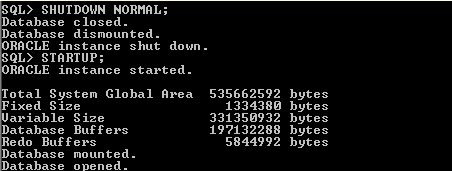
Step 9:

SQL> SHUTDOWN NORMAL;
Database closed.
Database dismounted.
ORACLE instance shut down.

SQL> STARTUP;
How to change Oracle database character set WE8MSWIN1252 to AL32UTF8,Oracle database character set WE8MSWIN1252 to AL32UTF8.How to change Oracle database character set WE8MSWIN1252,How to change Oracle database character set AL32UTF8,How to change Oracle database character set english to arabic,Oracle dba,oracle apps dba,oracle database character set,oracle database, character set,nls database parameters,database parameters,oracle nls database parameters,oralce NLS LANGUAGE,Oracle database NLS LANGUAGE


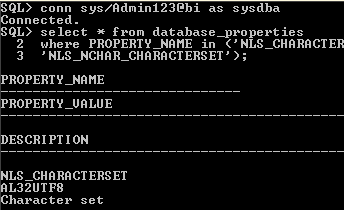
Now query your Database to confirm the change in CHARACTER SET.

Use below query :

select * from database_properties where PROPERTY_NAME in (‘NLS_CHARACTERSET’,  ‘NLS_NCHAR_CHARACTERSET’);
How to change Oracle database character set WE8MSWIN1252 to AL32UTF8,Oracle database character set WE8MSWIN1252 to AL32UTF8.How to change Oracle database character set WE8MSWIN1252,How to change Oracle database character set AL32UTF8,How to change Oracle database character set english to arabic,Oracle dba,oracle apps dba,oracle database character set,oracle database, character set,nls database parameters,database parameters,oracle nls database parameters,oralce NLS LANGUAGE,Oracle database NLS LANGUAGE


Your character set has changed successfully.

Share