Archive for the ‘TEChNoLoGY’ Category

How to transfer data from your old iPhone to your new iPhone

June 12th, 2017, posted in Apple
Share

How to transfer your data to your new iPhone using iTunes

Here’s the deal: If you make an encrypted backup of your old iPhone using iTunes, then restore it to your new iPhone, it’ll bring most — if not all — your password information along with it. That’ll save you a lot of time and effort getting set back up.

You do need a Lightning to USB cable (or 30-pin Dock to USB if you have an iPhone 4s or earlier), and you’ll still have to re-download apps — the App Store gives you slightly different versions for each device, optimized to run best on that specific hardware — but overall I still find it to be much, much faster.

  1. Make sure you’re running the most recent version of iTunes.
  2. Plug your old iPhone into your Mac or Windows PC.
  3. Launch iTunes.
  4. Click on the iPhone icon in the menu bar when it appears.
  5. Click on Back Up Now.
  6. Click on Encrypt Backup and add a password.
  7. Skip Backup Apps, if asked. (They’ll likely re-download anyway.)
  8. Unplug your old iPhone when done.
  9. Turn off your old iPhone.
  10. On iTunes on your Mac or Windows PC, select Restore from this backup.
  11. Choose your recent backup from the list.
  12. Enter your password if your backup was encrypted and it asks.
  13. Take your SIM card out of your old iPhone. (If you don’t have a new or separate SIM card for your new phone.)How to transfer data from your old iPhone to your new iPhone ,How to transfer data from your old iPhone, new iPhone,iPhone,How to transfer data,iTunes,most recent version of iTunes.Wait for the backup to complete before proceeding.
    1. Put your SIM card into your new iPhone. (If it didn’t come with a new or different SIM card.)
    2. Turn on your new iPhone.
    3. Plug your new iPhone into your Mac or Windows PC.
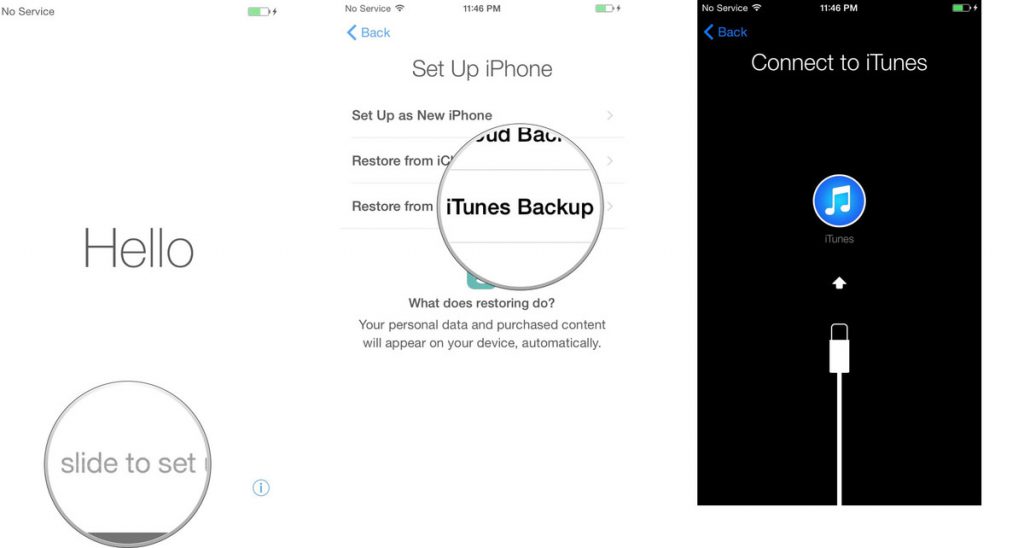
    4. Slide to set up on your iPhone.
    5. Follow the directions to choose your language and set up your Wi-Fi network.
    6. Select Restore from iTunes backup.
      How to transfer data from your old iPhone to your new iPhone ,How to transfer data from your old iPhone, new iPhone,iPhone,How to transfer data,iTunes,most recent version of iTunes.
    7. On iTunes on your Mac or Windows PC, select Restore from this backup.
    8. Choose your recent backup from the list.
    9. Enter your password if your backup was encrypted and it asks.How to transfer data from your old iPhone to your new iPhone ,How to transfer data from your old iPhone, new iPhone,iPhone,How to transfer data,iTunes,most recent version of iTunes.


      Keep your iPhone plugged into iTunes until the transfer is complete, and on Wi-Fi until all re-downloads are complete. Depending on how much data you have to re-download, including music and apps, it might take a while.Your iPhone might feel warm or even hot, and you might burn a lot of battery life for the first few hours or even a day or due to the radios working and the Spotlight search system indexing. Just let it finish.

Share

They Need From The Comfort Of Their Sofas At The Touch Of A Button

June 10th, 2017, posted in Ink On PAPER, Scarface'S DIARY, TEChNoLoGY, UNiVERSE
Share

shopping online,The Touch Of A Button,On Touch Of A Button,clothes, food, electronics, DVDs and CDs,John Lewis, New Look, Topshop ,Tesco,soical media,facebook,twitter,

The days of trekking to the high street for your shopping needs are over, all you need now to fulfill you shopping needs is a smartphone. Life on the high street is getting increasingly difficult for traders as people can now buy all they need from the comfort of their sofas at the touch of a button.

Now not only can we watch, search and bank online, but we can shop online too. So what are the advantages of shopping online? The service is convenient.  Shoppers can purchase clothes, food, electronics, DVDs and CDs 24/7 and they can have them delivered at a time that suits them.

Retailers are now targeting online shoppers by releasing mobile phone apps. The apps are designed to make the online experience easier for their customers.

The Telegraph said: “Shoppers are spending more time checking out shopping websites on their mobile phones and tablets than on desktop computers for the first time ever, according to new research.

“We’ve placed a significant focus on developing our mobile strategy and have more enhancements planned for our app later this year. Customers want to be able to shop seamlessly across all channels and mobile is now the go-to choice alongside visiting our shops.”

With all the perks of online shopping, it is no surprise that high street retailers are disappearing. John Lewis, New Look, Topshop and Tesco are just some examples of retailers who started life in store and expanded and created online stores to keep up with the fast changes to shopping.


Link : https://t.co/VXS8mgN7Tv
Share

Transferring The DBC File From The Application Server

June 6th, 2017, posted in Oracle, Solaris
Share

We will now transfer the database connection file (DBC) from the application server of our EBS environment. We will transfer this to our local directory so that we can create database connections for JDeveloper so that we can run our OAF pages locally during development.


How to do it :

To transfer the .dbc file, perform the following tasks:

  1. Open WinSCP or FileZilla etc and connect to the application server.
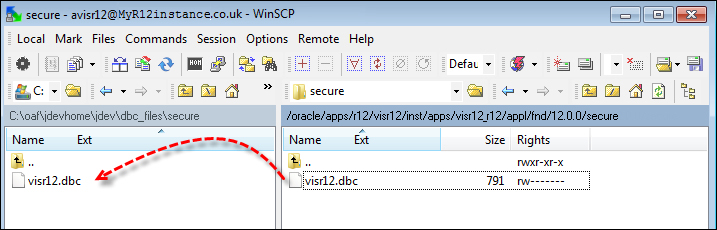
  2. FTP the .dbc file to your local PC from the $INST_TOP/appl/fnd/12.0.0.0/secure dor you can say its path is something like this /u99/appprod52/inst32/apps/PROD_DB/appl/fnd/12.0.0/secure  directory on the application server to the jdevhome\jdev\dbc_files\secure directory as shown in the following screenshot:


    Transferring The DBC File From The Application Server,Oracle DBA,DBA,Oracle Apps,Oracle DBC
Share

Unix for DBA

May 24th, 2017, posted in Solaris
Share

Below are some of the basic unix commands which will be useful for Oracle DBA.

How to kill all similar processes with single command (in this case opmn)

ps -ef | grep opmn |grep -v grep | awk ‘{print $2}’ |xargs -i kill -9 {}

Locating Files under a particular directory

find . -print |grep -i test.sql

Using AWK in UNIX

To remove a specific column of output from a UNIX command – for example to determine the UNIX process Ids for all Oracle processes on server (second column)

ps -ef |grep -i oracle |awk ‘{ print $2 }’

Changing the standard prompt for Oracle Users

Edit the .profile for the oracle user

PS1=”`hostname`*$ORACLE_SID:$PWD>”

Display top 10 CPU consumers using the ps command

/usr/ucb/ps auxgw | head -11

Show number of active Oracle dedicated connection users for a particular ORACLE_SID

ps -ef | grep $ORACLE_SID|grep -v grep|grep -v ora_|wc -l

Display the number of CPU’s in Solaris

psrinfo -v | grep “Status of processor”|wc -l

Display the number of CPU’s in AIX

lsdev -C | grep Process|wc -l

Display RAM Memory size on Solaris

prtconf |grep -i mem

Display RAM memory size on AIX

First determine name of memory device

lsdev -C |grep mem

then assuming the name of the memory device is ‘mem0’

lsattr -El mem0

Swap space allocation and usage

Solaris : swap -s or swap -l

Aix : lsps -a

Total number of semaphores held by all instances on server

ipcs -as | awk ‘{sum += $9} END {print sum}’

View allocated RAM memory segments

ipcs -pmb

Manually deallocate shared memeory segments

ipcrm -m ‘<ID>’

Show mount points for a disk in AIX

lspv -l hdisk13

Display amount of occupied space (in KB) for a file or collection of files in a directory or sub-directory

du -ks * | sort -n| tail

Display total file space in a directory

du -ks .

Cleanup any unwanted trace files more than seven days old

find . *.trc -mtime +7 -exec rm {} \;

Locate Oracle files that contain certain strings

find . -print | xargs grep rollback

Locate recently created UNIX files (in the past one day)

find . -mtime -1 -print

Finding large files on the server (more than 100MB in size)

find . -size +102400 -print

Crontab :

To submit a task every Tuesday (day 2) at 2:45PM

45 14 2 * * /opt/oracle/scripts/tr_listener.sh > /dev/null 2>&1

To submit a task to run every 15 minutes on weekdays (days 1-5)

15,30,45 * 1-5 * * /opt/oracle/scripts/tr_listener.sh > /dev/null 2>&1

To submit a task to run every hour at 15 minutes past the hour on weekends (days 6 and 0)

15 * 0,6 * * opt/oracle/scripts/tr_listener.sh > /dev/null 2>&1

Share

Ways to Open the Windows Task Manager

May 17th, 2017, posted in Microsoft
Share

Ways to Open the Windows Task Manager,Open the Windows Task Manager,Ways to Open,Windows Task Manager,Windows,Task Manager,Windows 10,Windows XP,Windows 7,Windows Server 2012,

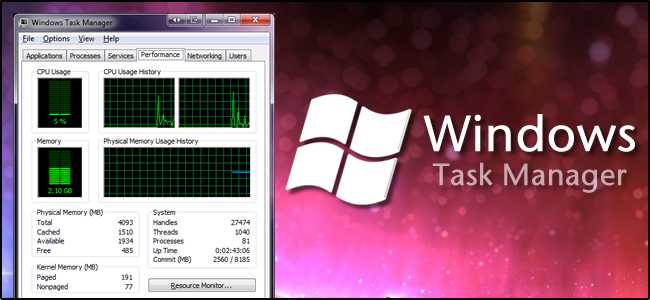
Bringing up Windows Task Manager is not much of a task itself, but when a virus disables Ctrl+Alt+Del and takes it hostage, how else are you going to open task manager? Or maybe you’re just looking for some diversity in your life, so here are six different ways to open Windows Task Manager.


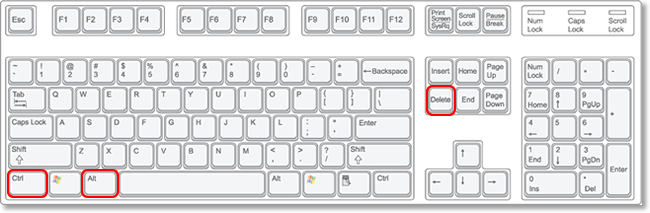
1) Ctrl+Alt+Del

Readers will probably be most familiar with the three-finger salute (AKA Ctrl+Alt+Del). Up until Windows Vista was released, pressing Ctrl+Alt+Del brought you directly to Windows Task Manager. Since Windows Vista, Ctrl+Alt+Del now brings you to the Windows Security screen which provides users with five different options including Windows Task Manager.

Ways to Open the Windows Task Manager,Open the Windows Task Manager,Ways to Open,Windows Task Manager,Windows,Task Manager,Windows 10,Windows XP,Windows 7,Windows Server 2012,


2) Right-Click Taskbar

Arguably the fastest way to bring up Windows Task Manager is by right-clicking the taskbar and choosing the Start Task Manager option. It’s just two clicks and voilà! You’re staring at Task Manager in no time! Of course, you could always create an AutoHotKey script to bring up Windows Task Manager even faster with a click of a button

Ways to Open the Windows Task Manager,Open the Windows Task Manager,Ways to Open,Windows Task Manager,Windows,Task Manager,Windows 10,Windows XP,Windows 7,Windows Server 2012,


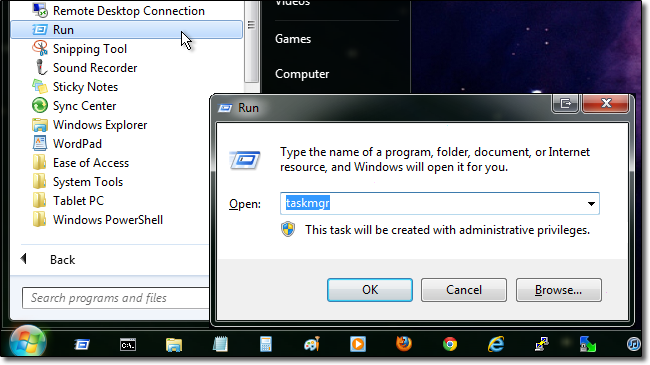
3) Run taskmgr

The Run command is a great tool for accessing shared folders, but you can also use it quickly up programs such as Registry Editor or a Command Prompt. Click the Start button then the All Programs folder. Under the Accessories folder click the Run command. You can also press they Windows Key + R on your keyboard or enable the Run command in your Start Menu. Finally, simply type “taskmgr” and hit Enter.

Ways to Open the Windows Task Manager,Open the Windows Task Manager,Ways to Open,Windows Task Manager,Windows,Task Manager,Windows 10,Windows XP,Windows 7,Windows Server 2012,taskmgr,dos command


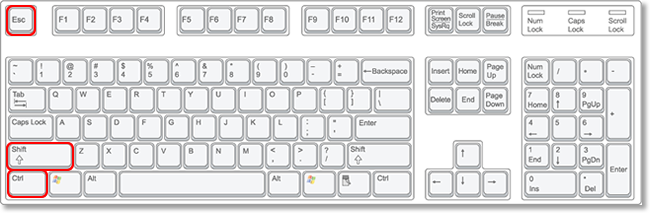
4) Ctrl+Shift+Esc

Another quick keyboard shortcut to bring up Windows Task Manager is Ctrl+Shift+Esc. Besides bringing up Windows Task Manager while using Remote Desktop, you can also use Ctrl+Shift+Esc to bring up the task manager while working locally.

Ways to Open the Windows Task Manager,Open the Windows Task Manager,Ways to Open,Windows Task Manager,Windows,Task Manager,Windows 10,Windows XP,Windows 7,Windows Server 2012,taskmgr,dos command


5) Browse to taskmgr.exe

This is definitely the longest way of opening the task manager, but if it’s your only option then it’s better than nothing at all. Open up Windows Explorer and navigate to C:\Windows\System32. The location of taskmgr.exe should be the same in all recent versions of Windows. Scroll down (or search) for taskmgr.exe and double click it.

Ways to Open the Windows Task Manager,Open the Windows Task Manager,Ways to Open,Windows Task Manager,Windows,Task Manager,Windows 10,Windows XP,Windows 7,Windows Server 2012,taskmgr,dos command


6) Create taskmgr.exe Shortcut

And last on our list is creating a nice, accessible shortcut to the Task Manager on your desktop. Right-click on your desktop and choose New then click Shortcut. A new window will pop up. Browse to the same path as above, C:\Windows\System32. Scroll down until you see taskmgr.exe, highlight it, and then click OK. Click Next, type a name for your shortcut, and finally click Finish.

Ways to Open the Windows Task Manager,Open the Windows Task Manager,Ways to Open,Windows Task Manager,Windows,Task Manager,Windows 10,Windows XP,Windows 7,Windows Server 2012,taskmgr,dos command

Share